
Small Changes, Less Friction: Clearer Anomalies, Named Tabs and Phrase Search Experience
This update brings together a set of smaller improvements, all based on feedback from people who use EdgeTier every day.

Every interaction gets a rating and a short explanation for each of three Experience Drivers, so you can see whether the agent, the bot or the product itself shaped how it went. Ask Spotlight already uses these ratings, and this release adds them to the interaction view and the Experience Score chip, and lets you filter interactions by them.
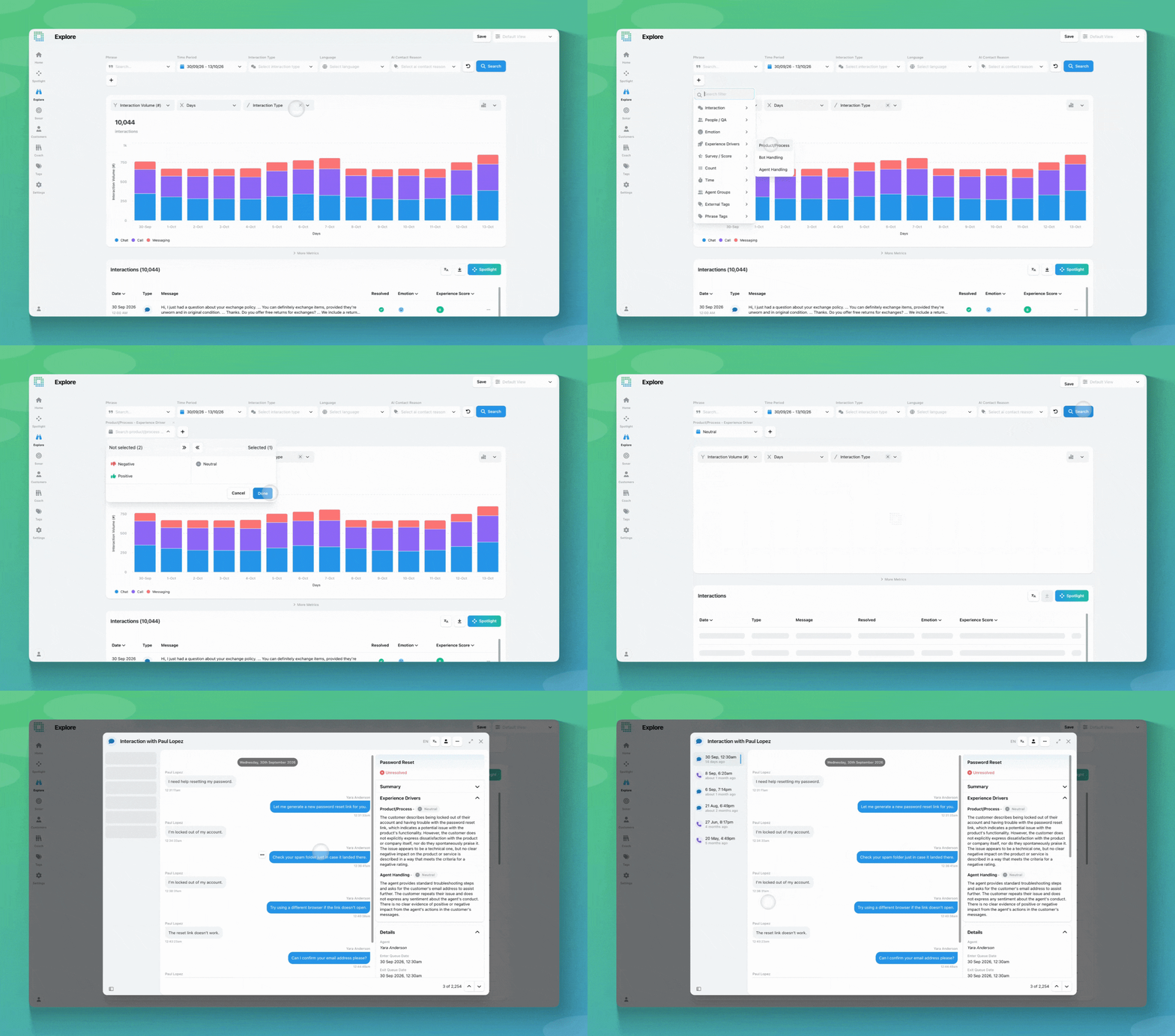
Every interaction gets a rating and a short explanation for each of three Experience Drivers, so you can see whether the agent, the bot or the product itself shaped how it went. Ask Spotlight already uses these ratings, and this release adds them to the interaction view and the Experience Score chip, and lets you filter interactions by them.
Interactions are labelled across three Experience Driver categories: Product/Process, Bot Handling and Agent Handling. Each one is rated positive, negative or neutral, with a one-sentence explanation of why. If Bot Handling is negative, for example, you might read that the bot misunderstood the customer’s question, looped them through the menu, and they left without a resolution.
These ratings are already live in Ask Spotlight. It can look up the drivers for a single interaction or aggregate them across a group, so you can ask questions like “What drove negative experiences for billing contacts last week?” or build a report around them.
This release puts the same ratings and explanations into the interface in two places, and adds a filter for each driver:
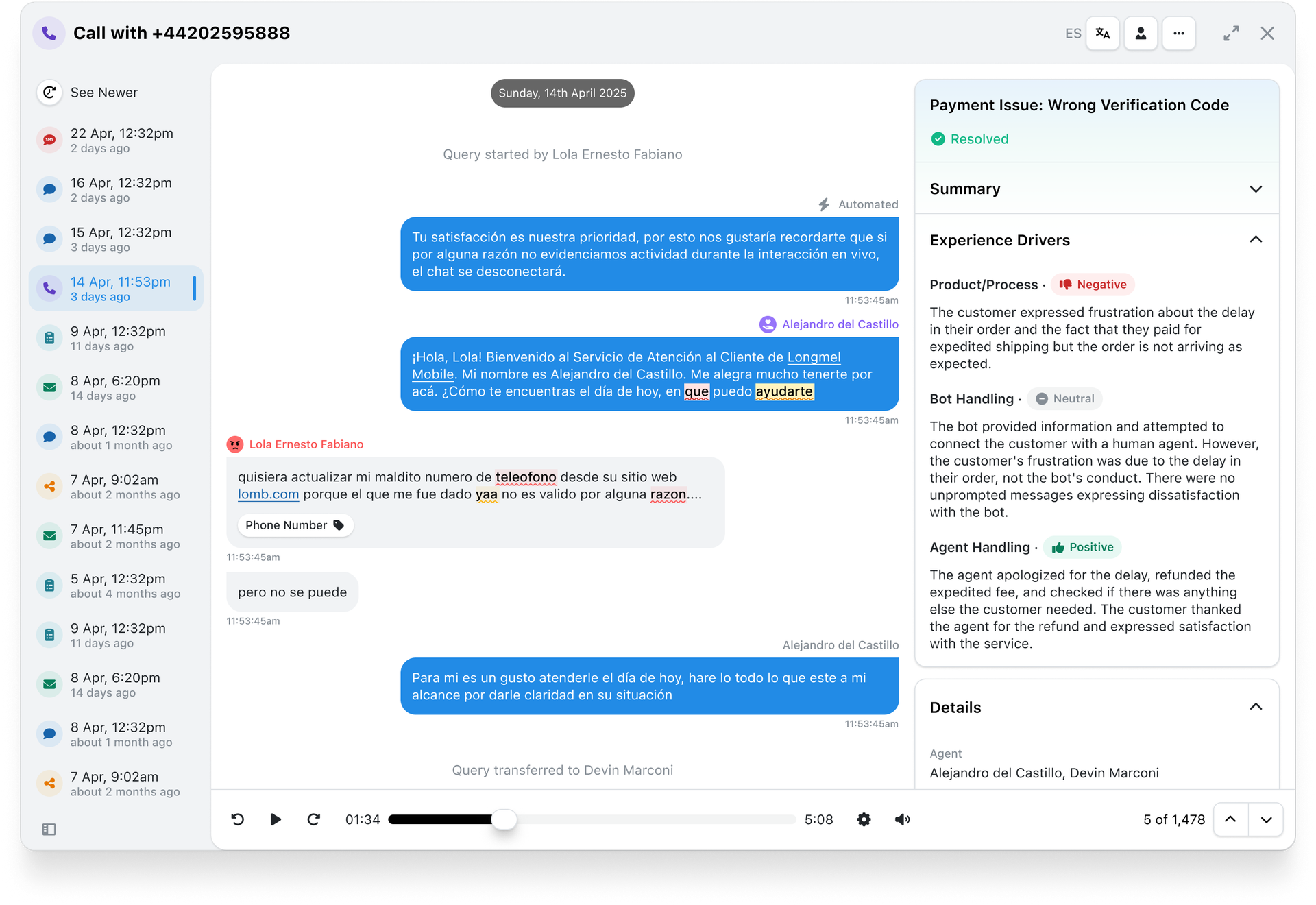
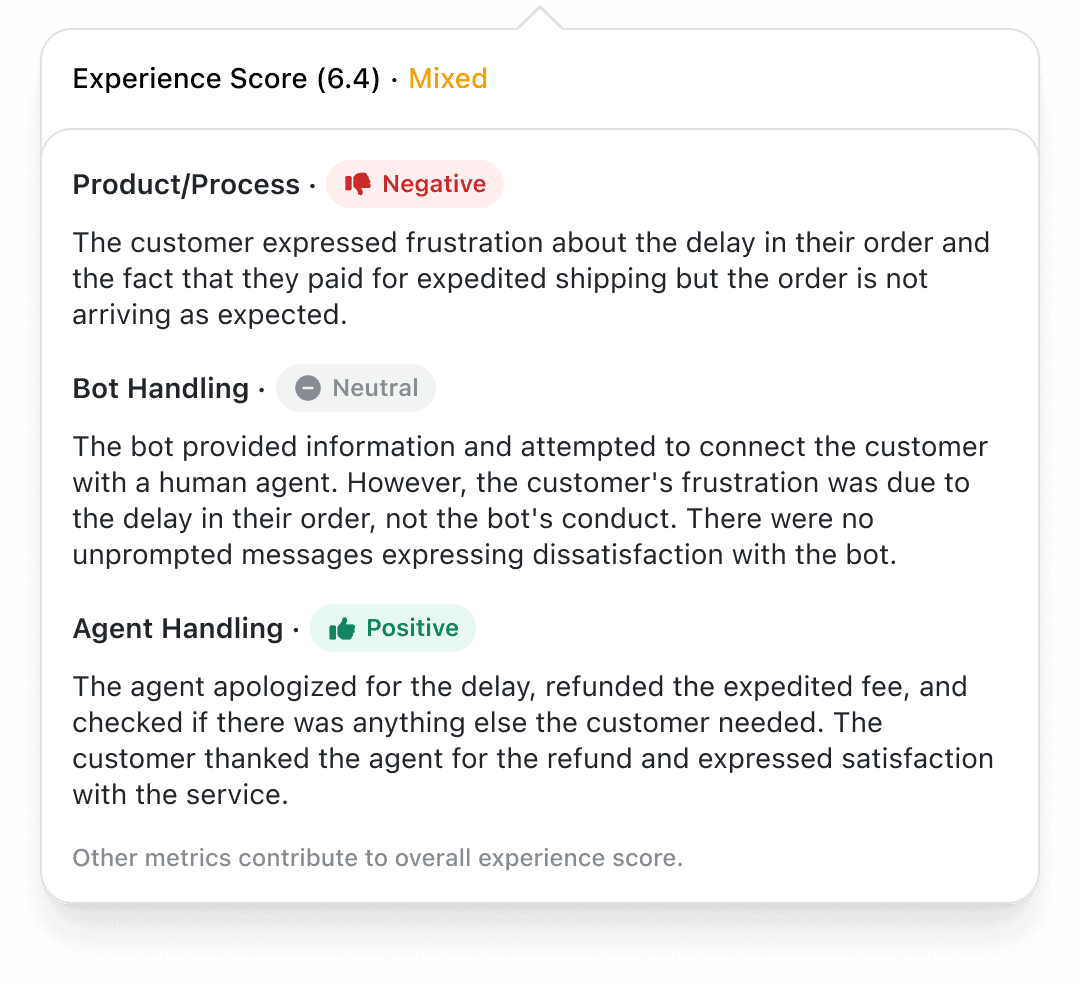
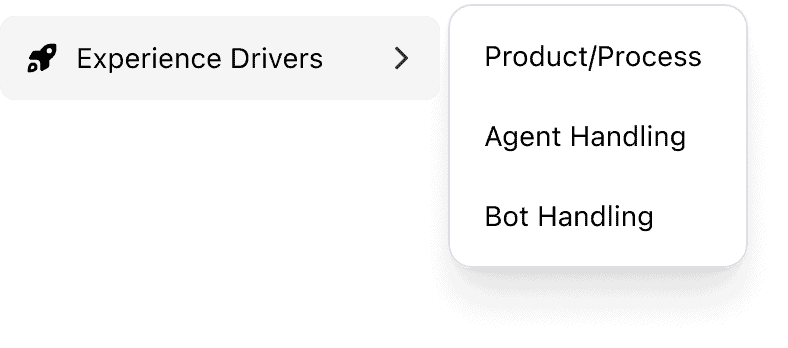
To look across many interactions at once, use Ask Spotlight, which already supports this. Ask about Experience Drivers directly, for example which driver is behind a drop in CSAT for a contact reason.
There’s no new permission for this. Anyone who can open an interaction can see its Experience Drivers, the filters are there for anyone who can already use the filter bar on those screens, and asking about them in Ask Spotlight uses your existing Ask Spotlight access.
We’re always improving our AI summaries. If you have questions or feedback about your experience driver summaries and how they could be improved, reach out to your Customer Success contact.
This update brings together a set of smaller improvements, all based on feedback from people who use EdgeTier every day.
Since launch, Ask Spotlight has learned to analyse QA review questions, frequent customers and repeat contacts. The suggested prompts you
There are two updates here for anyone who manages users in EdgeTier. The Roles & Permissions page has been reorganised


Afroditi Pina
Director of Customer Service
"It has reduced the time for the quality assurance process as it provides clear data and a very robust direction on where to look and what matters the most."


Debbie Duggan
Contract Manager for Customer Solutions
"We thought at the time that we were putting the customer at the fore. We thought we were doing things right. But in hindsight, we really weren’t because we had no real-time insights whatsoever into customer issues."


James Waghorn
Director of Customer Contact
"EdgeTier is no ordinary software product... It has completely changed how we work at CarTrawler."



Let us help your company go from reactive to proactive customer support.
Unlock AI Insights