
EdgeTier is now in Claude’s connector directory
EdgeTier is now listed in Claude’s connector directory so you can connect from there in a couple of clicks instead

This update brings together smaller improvements based on feedback from people who use EdgeTier every day: a dark theme, multi-language filtering, one-click drill-downs on Explore Tags, and an agent's groups wherever their name appears.
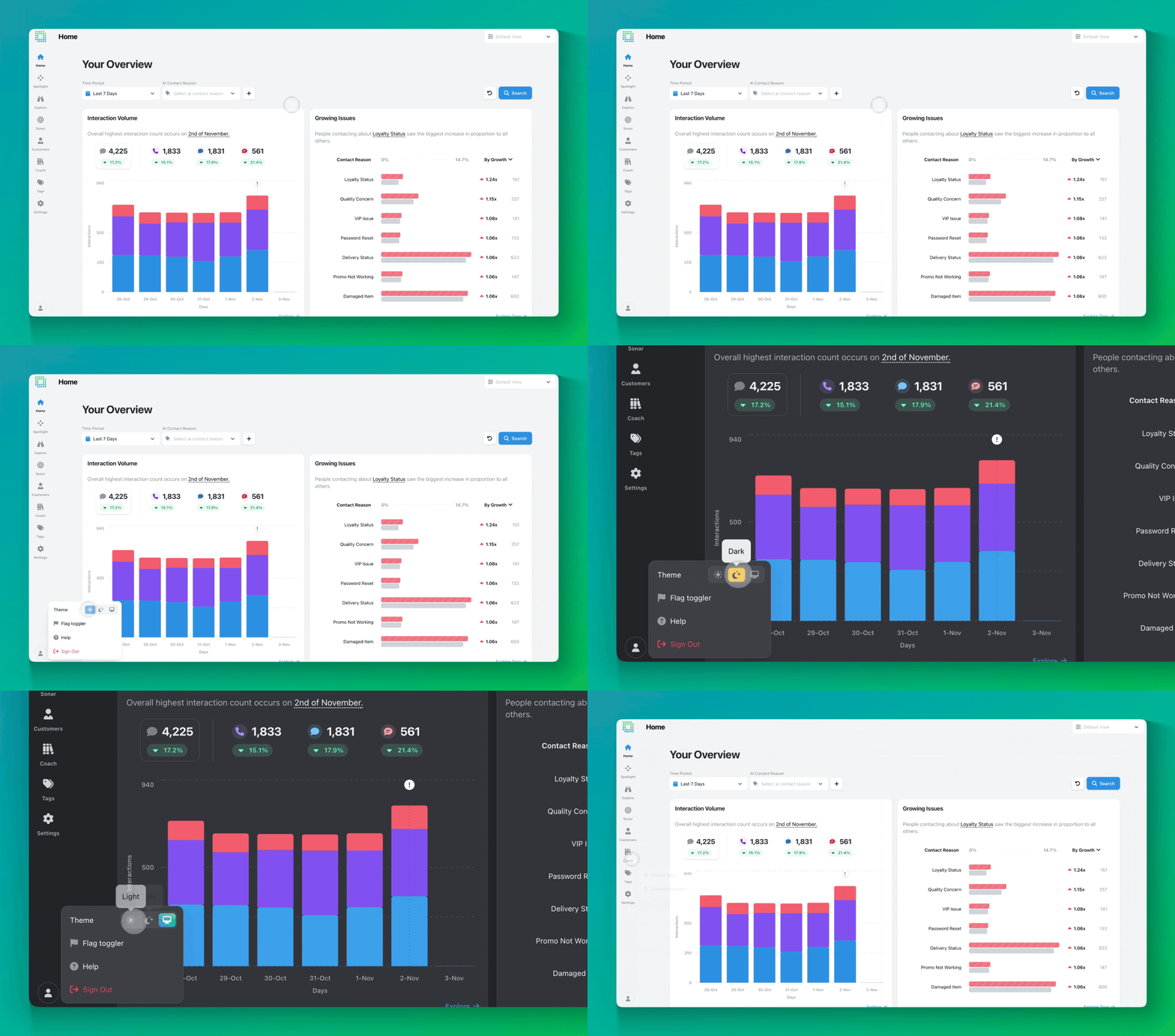
You can now switch EdgeTier to a dark theme. Text, icons, input borders and buttons in the dark theme are built to meet the WCAG 2.1 AA accessibility standard for contrast, so everything stays easy to read. The light theme looks exactly as it does today.
In practice: a team lead working an evening shift switches to dark mode to cut glare during long sessions on Explore.

Turn the same switch off to go back to the light theme. There’s no new permission for this. Each person chooses their own theme.
The language filter used to let you pick only one language at a time. It now works like the interaction type and tag filters: select as many languages as you need and you’ll see interactions in any of them together.
In practice: a CX lead whose team covers Spain and Portugal selects both languages and sees the whole region in one search.
There’s no new permission for this. Anyone who can already use the language filter will see the change.

You can now break any row on Explore Tags down by another tag group without rebuilding your filters. Pick a tag group from the row’s Split by menu and the page filters to that tag and splits it by the group you chose, keeping any tags you’ve already selected from other groups.
In practice: a CX lead sees refund contacts climbing, clicks Split by on the Refund row and picks Market to see which markets are driving it.

There’s no new permission for this. Anyone who can already use Explore Tags will see the change.
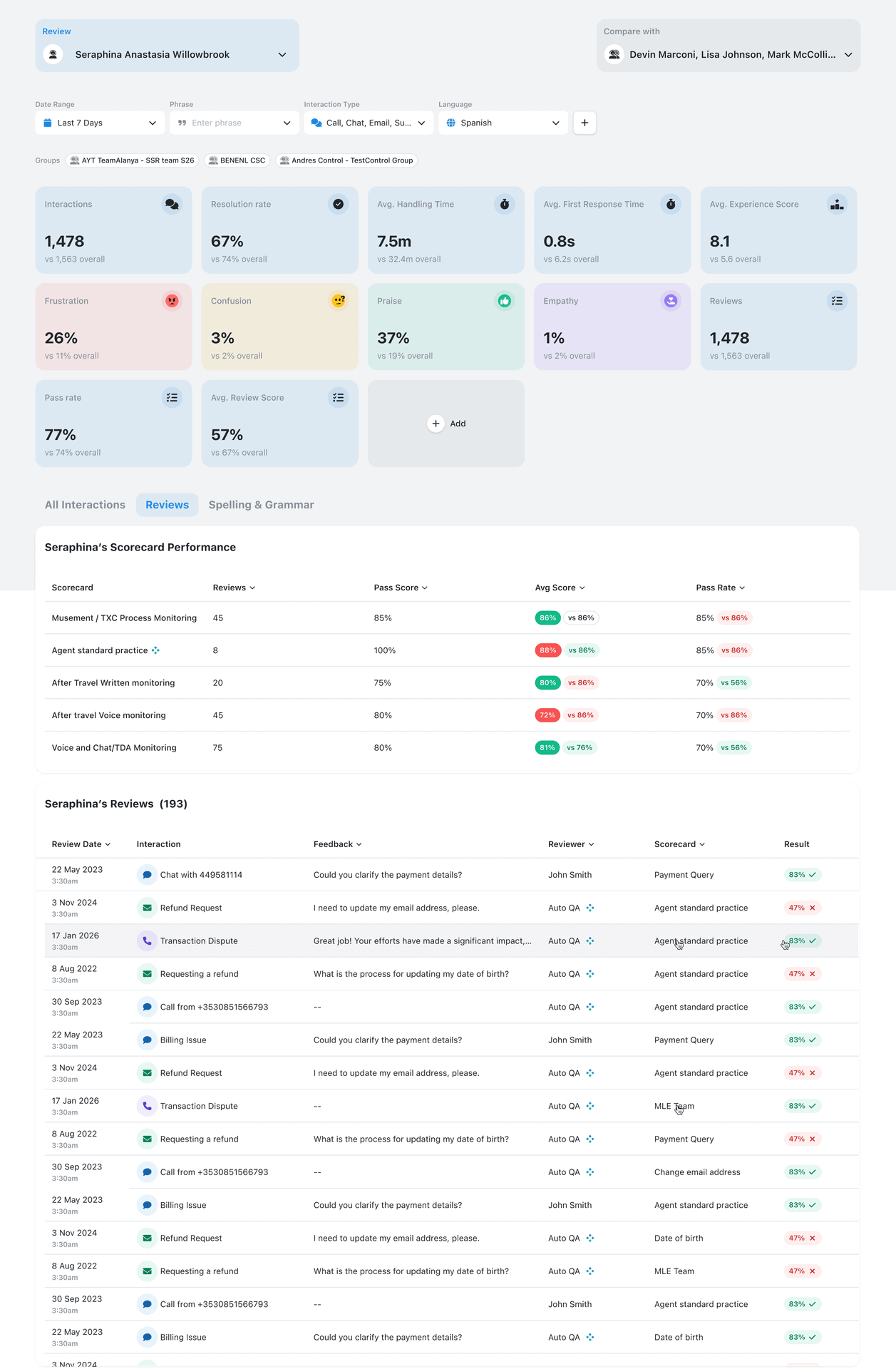
Checking an agent’s groups used to mean opening each group and looking for their name. Now their groups and sub groups show up where you already see the agent.
In practice: a QA lead reviewing a chat hovers over the agent’s name, sees they sit in a Tier 2 billing sub group, and has the context for how they handled a refund query.

There’s no new permission for this. Anyone who can already open Agent Activity, the Agents screen, an interaction or a review will see group details there.
If you have questions or feedback, reach out to your Customer Success contact.
EdgeTier is now listed in Claude’s connector directory so you can connect from there in a couple of clicks instead
You can now see how every scorecard question was scored across a review period, so you can spot knowledge gaps
Every agent who touches a conversation gets tracked against it now, and you can widen filtering and reporting to match,


Giovane Nicolau Junior
Head of Operations Performance
"EdgeTier is really shining when it comes to responsible gambling. We can proactively track critical issues and take actions, reducing human error."


Deborah Guivisdalsky
COO
"We now have highly detailed understanding of agent performance, not just on key agent metrics, but also on how customers react to our agents and the emotions of our customers feel when talking to our team."


Vladimir Greavu
BBG Director of Customer Service
"I specifically liked the flexibility. I liked the can-do attitude. I always felt supported. There hasn’t been any single point in our journey where EdgeTier has said no."



Let us help your company go from reactive to proactive customer support.
Unlock AI Insights