
Small Changes, Less Friction: Dark Mode, Multi-Language Filters, Tag Drill-Downs and Agent Groups
This update brings together smaller improvements based on feedback from people who use EdgeTier every day: a dark theme, multi-language

You can now turn your Ask Spotlight questions into reusable templates, either by saving them from the chat or by building them on the new Templates page. Then run them again from the chat bar or the Templates page. Templates can stay personal or be shared with your whole organisation.
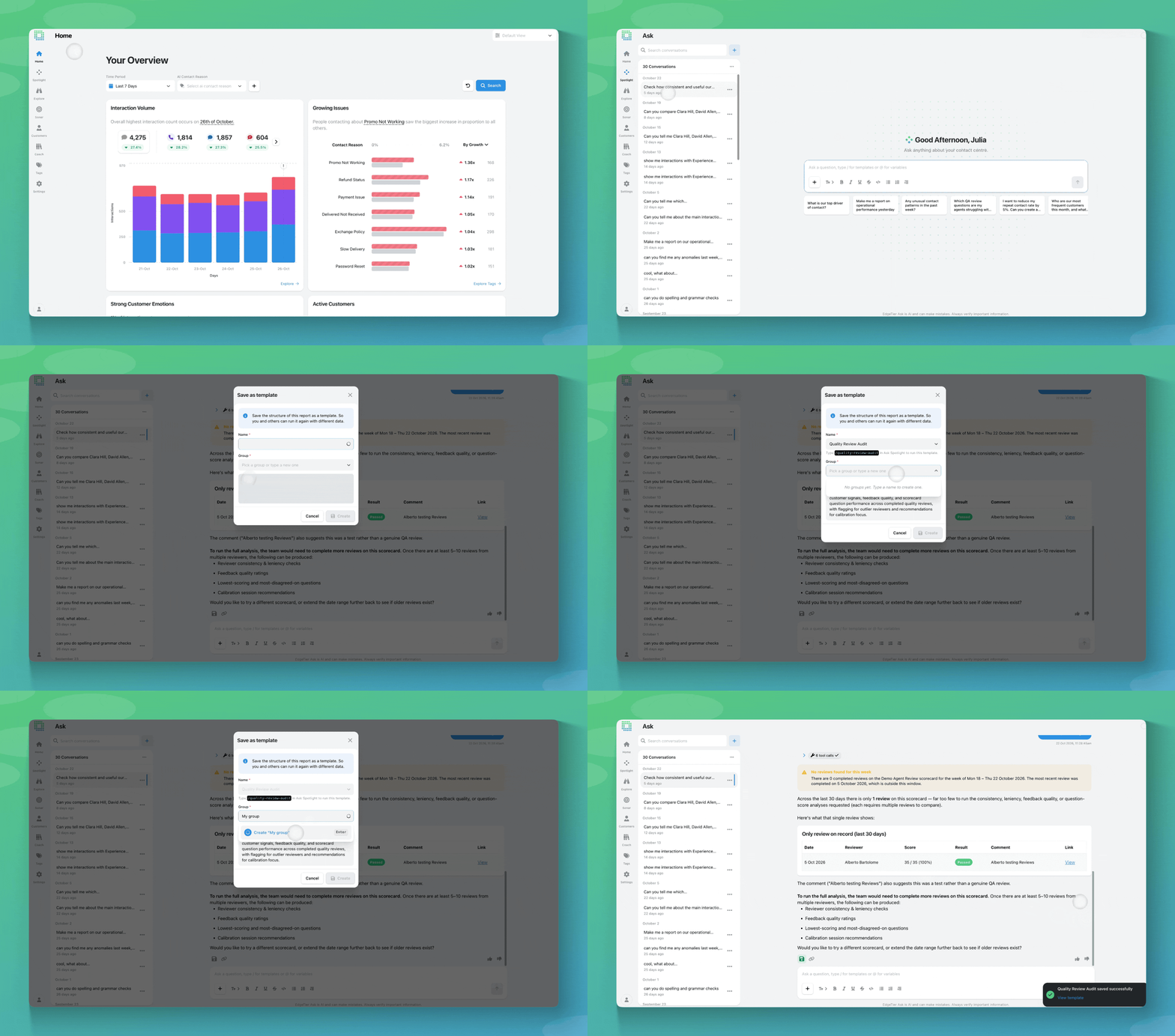
Until now, getting a repeatable report out of Ask Spotlight meant keeping your favourite prompts somewhere else and pasting them back in each time you needed them. Templates move that workflow into Ask Spotlight.
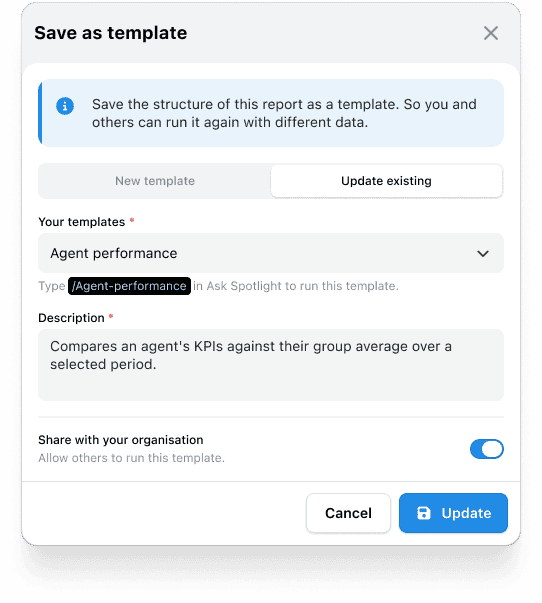
A template is a saved Ask Spotlight prompt you can run again whenever you need it, so you get the same report structure every time without rewriting the question. Each template has:
If a template needs details from you when it runs, like a team or a date range, Spotlight will ask for them.
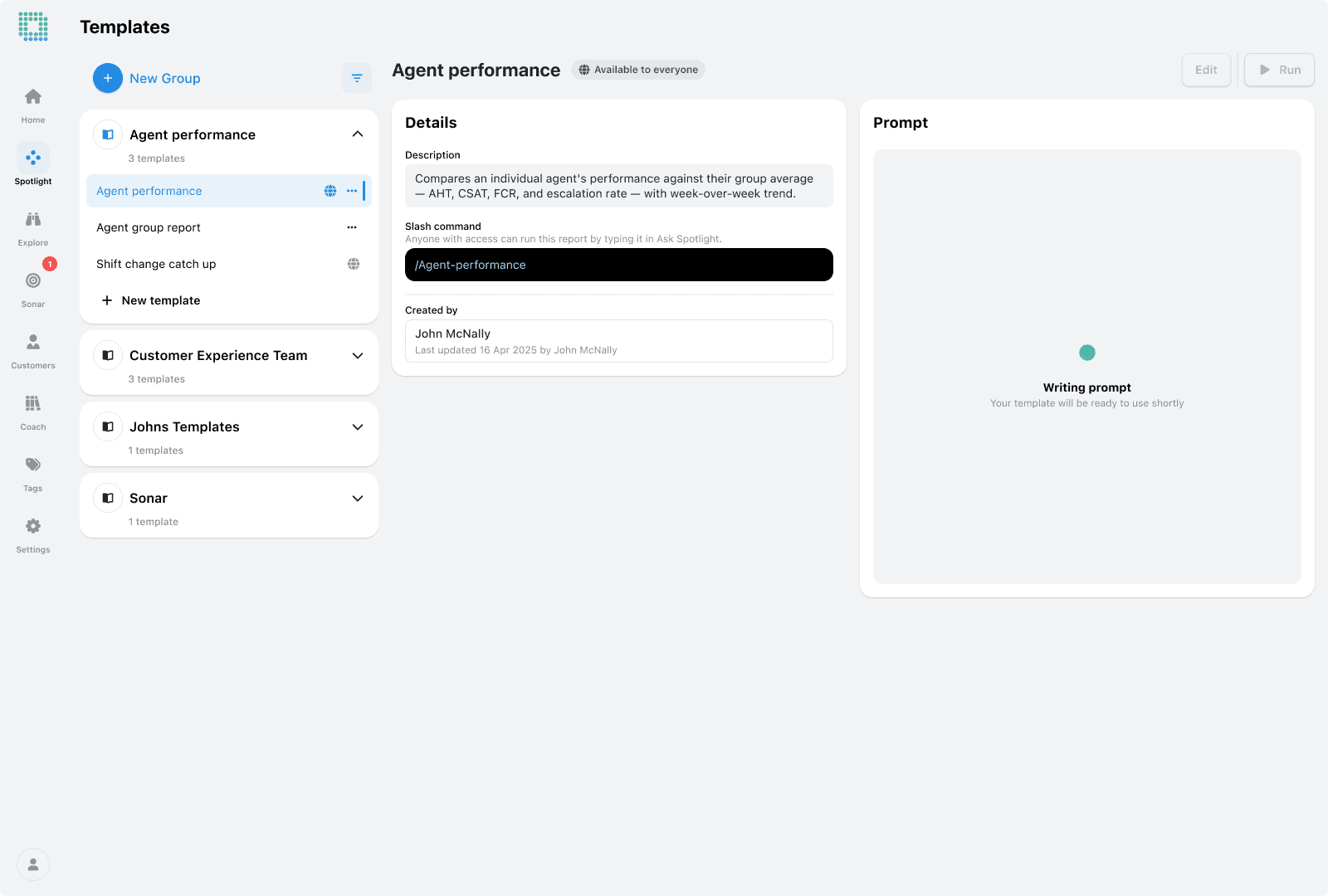
Templates live under Ask Spotlight → Templates in the sidebar, organised by group. You can filter the list to show only your own.
We filmed a how-to video to walk you through the process
You can create a template in two ways:
1. From a chat response (recommended): open Ask Spotlight, ask a question as usual, and when you get a response you want to keep, click the new Save icon next to the Share icon. Spotlight suggests a name, and you add a group, a description and choose whether to share it. You can also use this to overwrite one of your existing templates with a newer version.
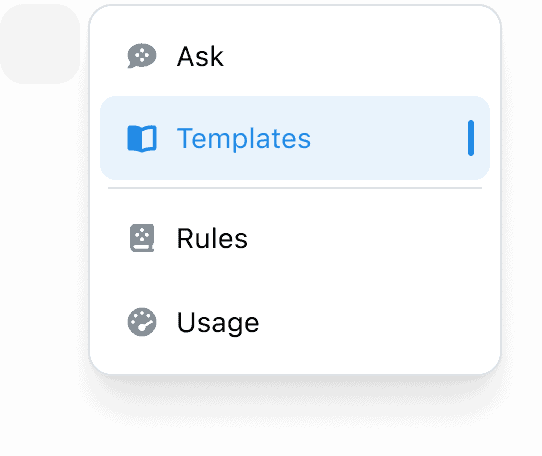
2. From the Templates page: open Ask Spotlight → Templates and click New Template in any group. Fill in the same details, plus the prompt itself. There’s built-in guidance on writing an effective prompt.
You can run a template in two ways:
You’ll need Ask Spotlight access to use templates. Sharing a template with your organisation needs the new Share Ask Spotlight Templates permission, which is on for Full Access roles by default and can be granted to others by your admin. If you can’t see the Save icon or the Templates section, check with your admin.
If you have questions or feedback, reach out to your Customer Success contact.
This update brings together smaller improvements based on feedback from people who use EdgeTier every day: a dark theme, multi-language
EdgeTier is now listed in Claude’s connector directory so you can connect from there in a couple of clicks instead
You can now see how every scorecard question was scored across a review period, so you can spot knowledge gaps


Debbie Duggan
Contract Manager for Customer Solutions
"We thought at the time that we were putting the customer at the fore. We thought we were doing things right. But in hindsight, we really weren’t because we had no real-time insights whatsoever into customer issues."


Afroditi Pina
Director of Customer Service
"It has reduced the time for the quality assurance process as it provides clear data and a very robust direction on where to look and what matters the most."


Robert Davies
Consultant
"You’ve got an issue, but you don’t know how many people are affected. You don’t know the scale. You don’t even know if it’s real."



Let us help your company go from reactive to proactive customer support.
Unlock AI Insights