More Control Over Your Reviews: Draft, Save, and Calibrate with Ease
Julia Sheehan
We’ve just shipped several big improvements to Reviews workflows. You can now save reviews in progress and run calibration sessions without affecting agent scores, and bulk export reviews as a .CSV!
What’s new
1. Review statuses: Draft, Test, and Completed
Draft reviews
You can save a review as a draft at any point while filling it out — unfilled questions stay blank rather than defaulting to N/A. Drafts are private to the reviewer who created them. Agents never see drafts, and they don’t affect any metrics. Come back to a draft whenever you’re ready and submit it as Test or Completed when done.
Test reviews (for calibration)
Marking a review as Test lets QA teams run calibration exercises without affecting agent scores. Test reviews are visible to reviewers and QA managers on the Reviews screen, but agents never see them and they’re excluded from agent performance metrics. Multiple reviewers can submit Test reviews for the same interaction independently, then compare scores side-by-side — the agent is unaffected throughout. When calibration is complete, a Test review can be promoted to Completed.
Completed reviews (with clearer naming)
The existing completion flow is unchanged in outcome but now has a clear label. Completed reviews are visible to agents, include the email notification option, and are counted in all metrics — same as before, just explicitly named.
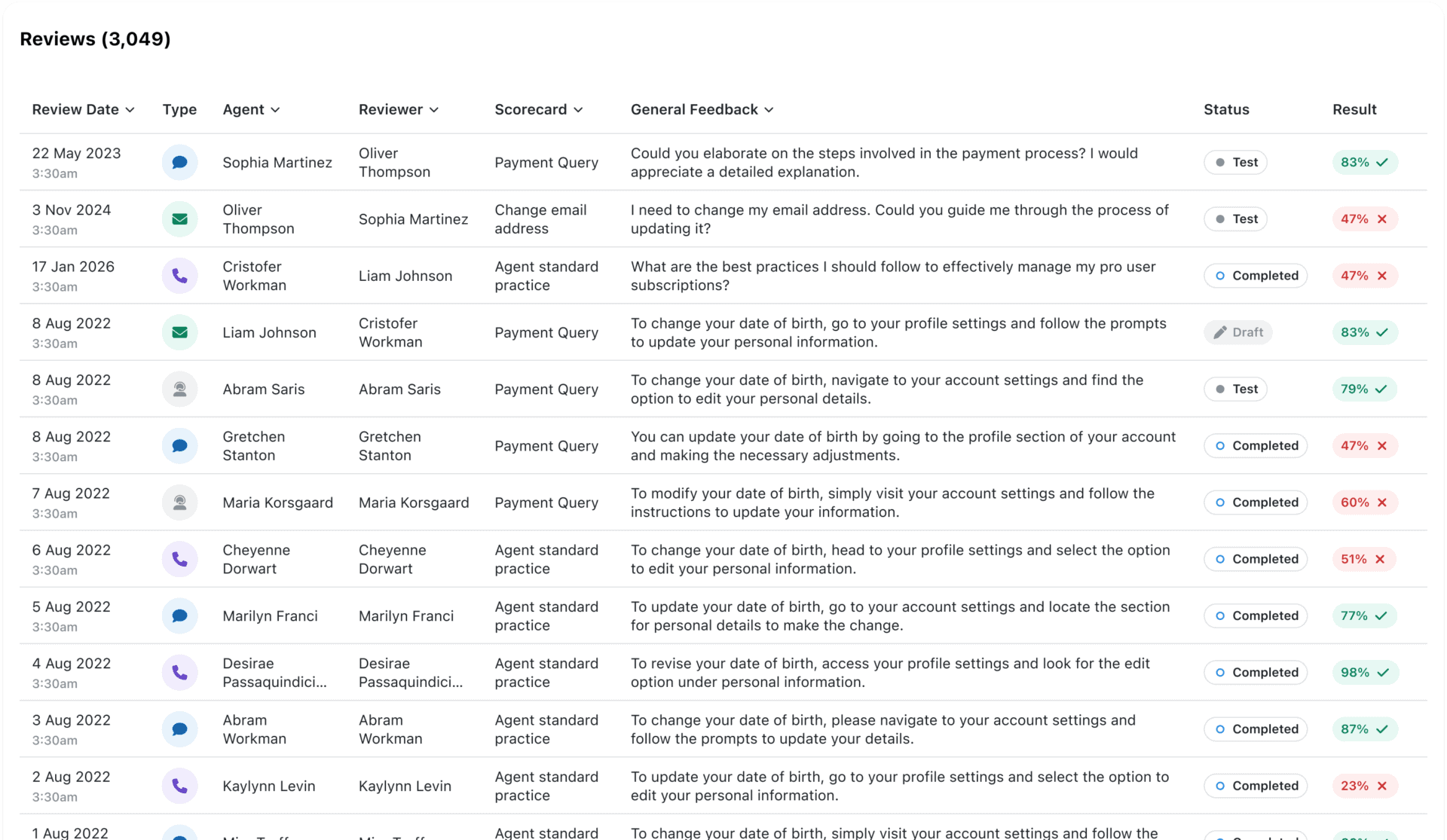
Status column and filter on Reviews screen
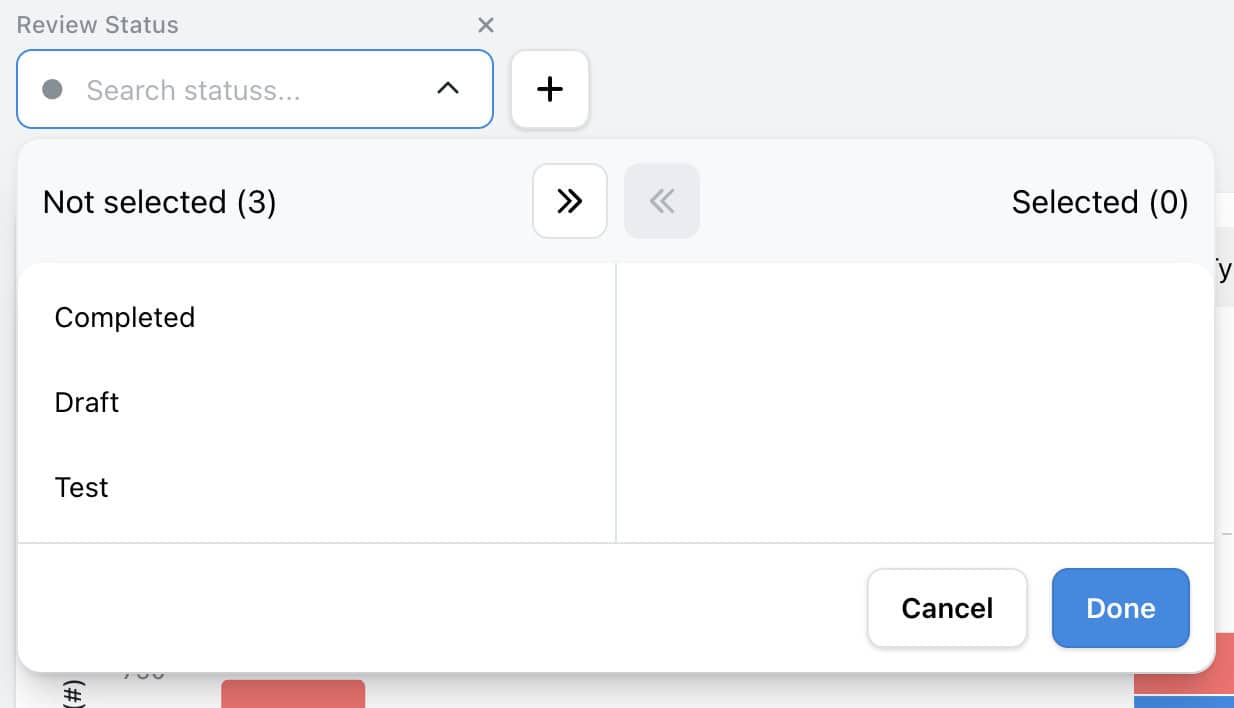
The Reviews screen now has a Status column showing each review’s current state. A new Status filter lets you view any combination of Draft, Test, and Completed reviews across all screens.
The existing “Review Status” filter on the Explore screen has been renamed to “Review Result” to avoid confusion.
2. Seen/Unseen indicator and toggle
Agents can now see at a glance whether they have opened a review. An unread review shows an empty blue dot — once an agent opens it, the dot fills to mark it as seen.
Reviewers and QA managers can use the seen/unseen toggle in the Reviews table and My Reviews table to filter by read status, making it easy to track which feedback agents have and haven’t yet viewed.
3. Export the Reviews table as a CSV
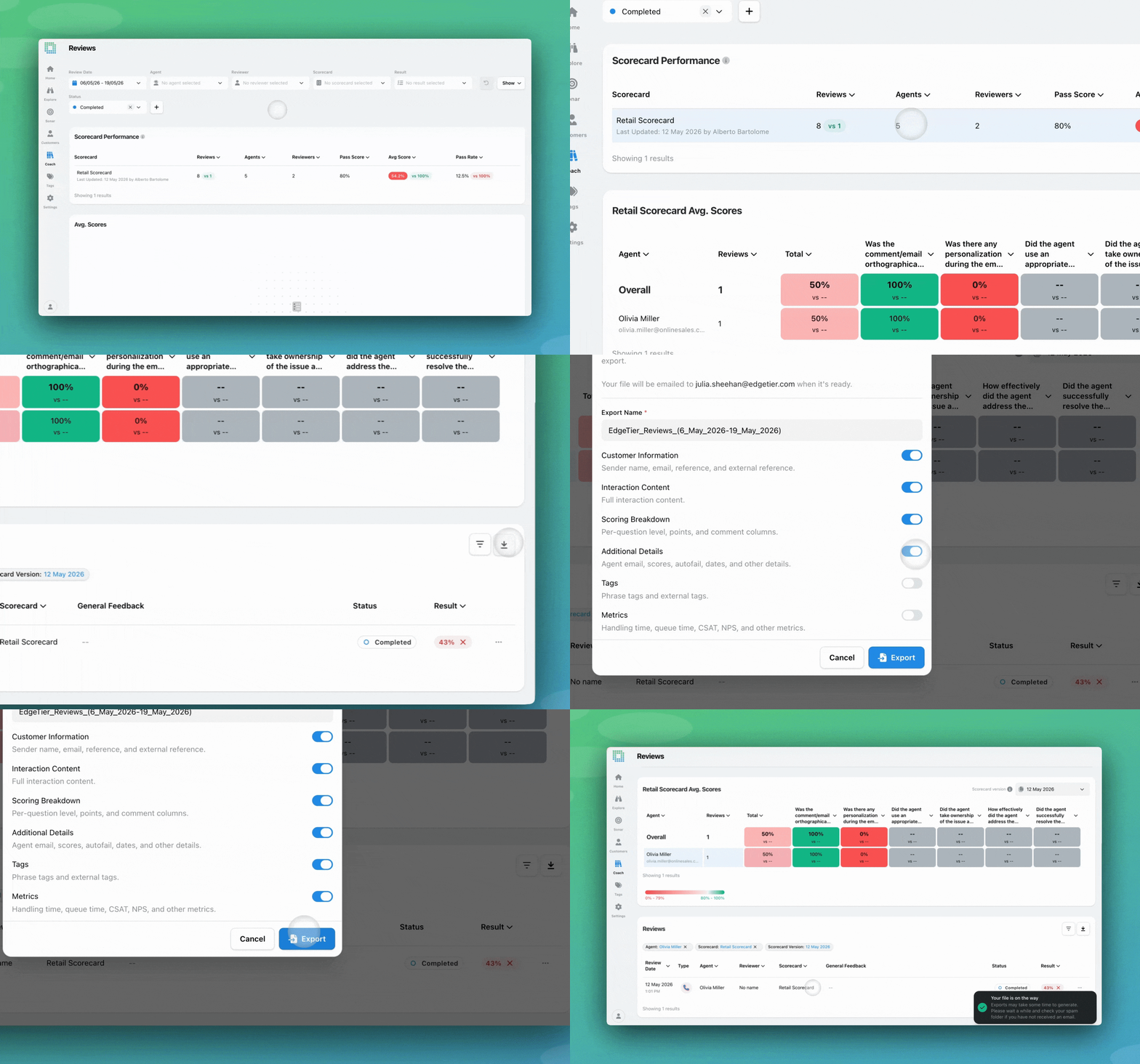
A download button has been added to the Reviews tab on the Reviews screen and Agent Performance screen. Clicking it opens an export modal where you can choose what to include alongside the core review data:
Questions and Details — per-question scoring, levels, points awarded, and reviewer comments
Metrics — handling time, response time, queue times, and interaction identifiers
Tags — phrase tags and external tags applied to reviewed interactions
Customer Details — email, name, and phone number (if available)
Interaction Content — the full text of the reviewed conversation
Exports run in the background. Once your file is ready, you’ll receive an email with a download link. The limit is the same as the limit on your interactions table export (200,000 rows).
How to find it
Reviews
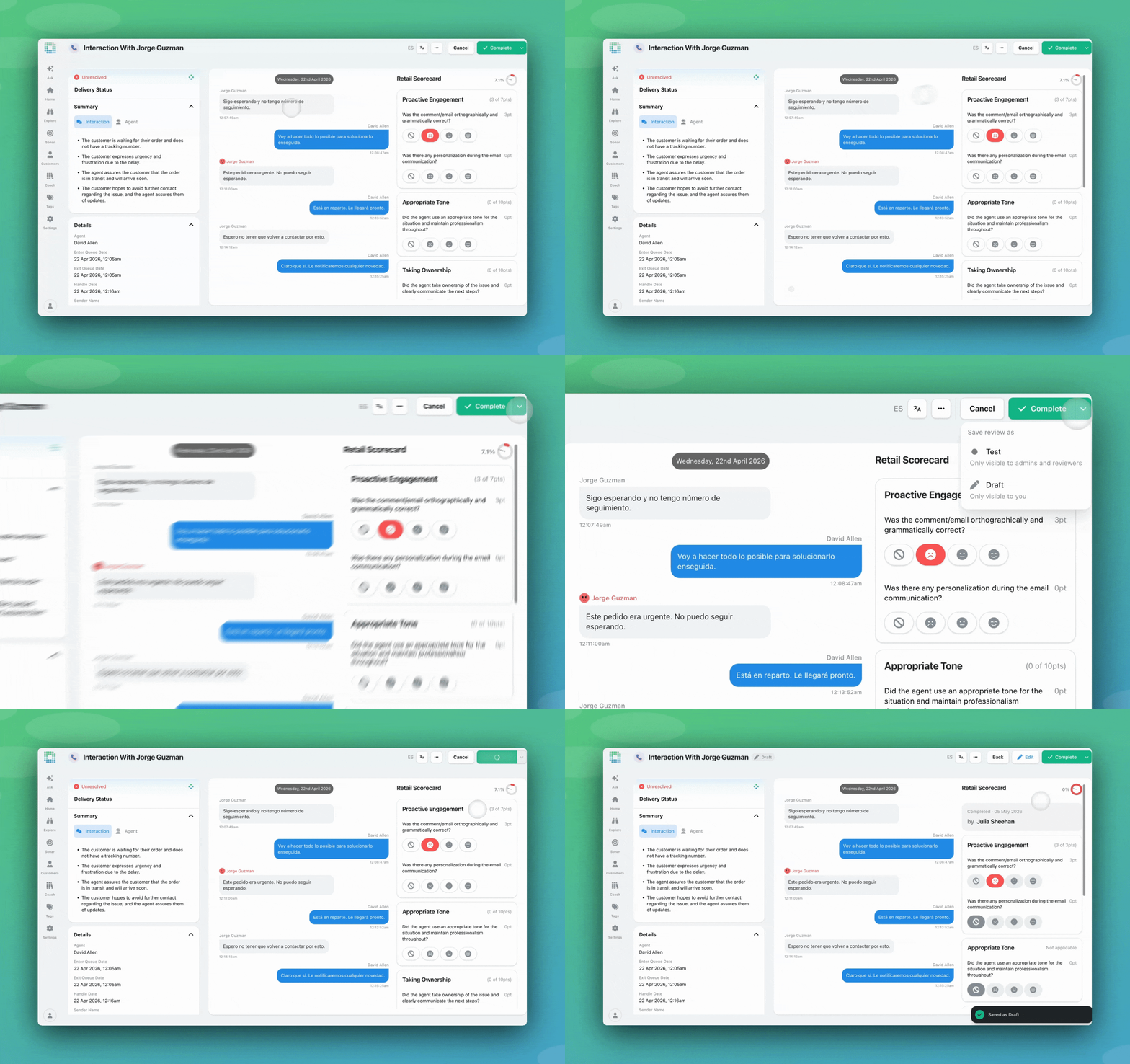
Navigate to an interaction to be reviewed
Select ‘Start Review’
Populate at least one question
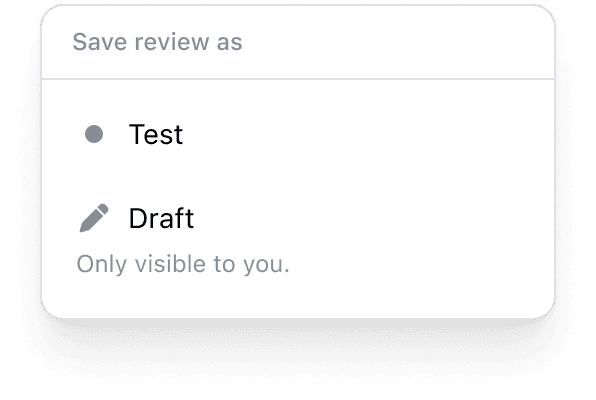
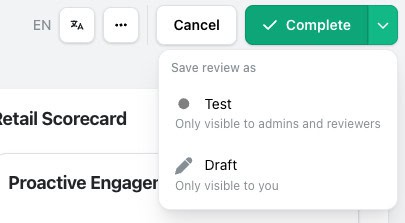
The dropdown will now display several options, depending on your user permissions
Drafts will save automatically
When you are ready to save your draft as ‘Completed’ or ‘Test’ , you can do so from here
Metrics and Filters – Reviews Screen
A new filter, ‘Status’ , has been added to the Reviews screen.
Seen/Unseen Toggle
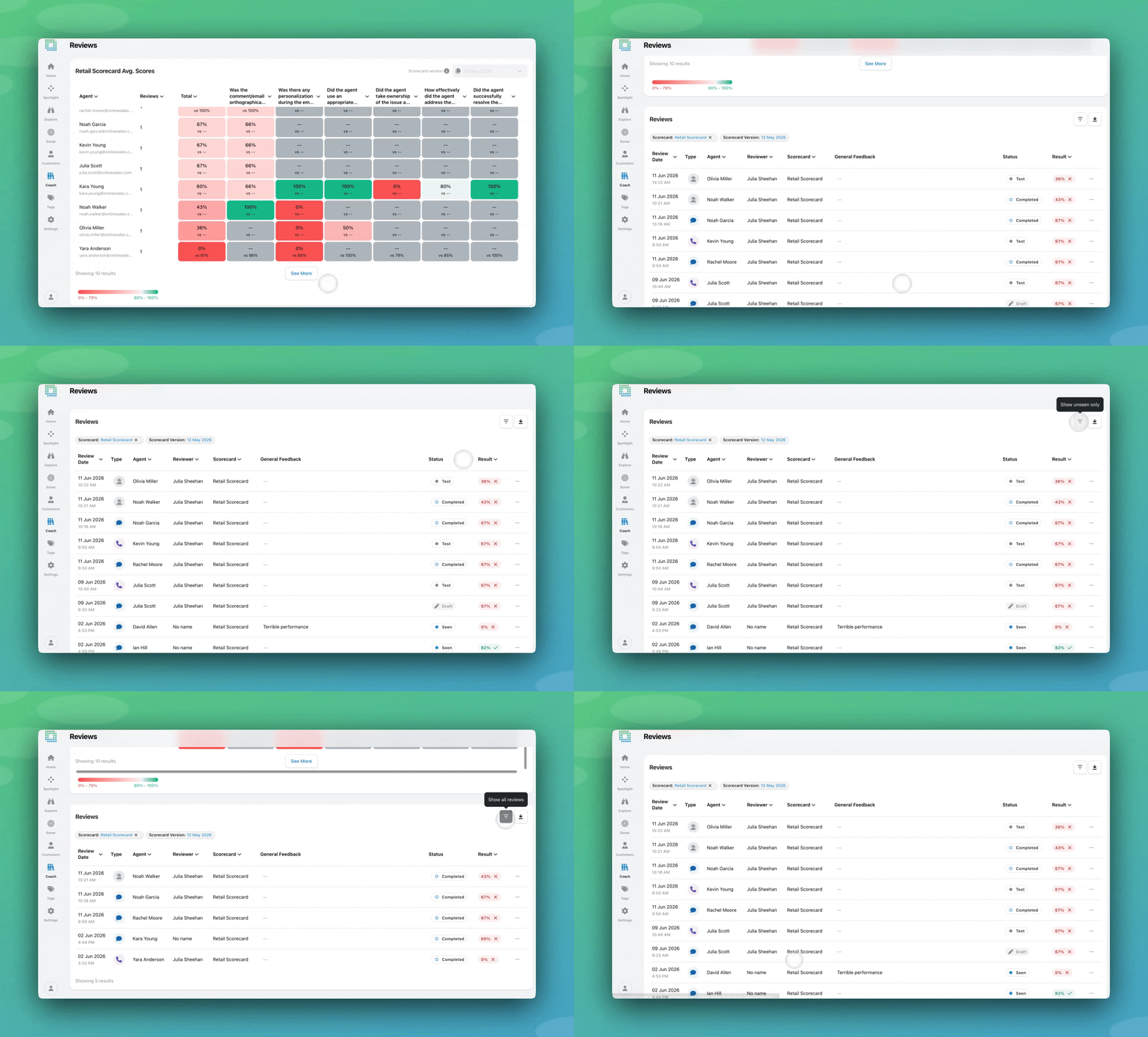
As part of the new ‘Status’ column, you can identify whether a review is seen/unseen via the blue dot.
An ‘Unseen’ review has an empty dot
A ‘Seen’ review has a full blue dot
You can also toggle ‘Unseen’ reviews out
Metrics and Filters – Other
The existing filter on other screens has been re-named to ‘Review Result’ to avoid confusion
CSV Export
Navigate to the Reviews screen
Apply any date, scorecard, or other filters you need
Click the download button on the Reviews table
Select the data you want to include and trigger the export
Check your email for the download link once the export is ready
What this looks like in practice
🔮A reviewer starts scoring a complex interaction but needs to pause mid-way. They save it as a draft, finish it the next morning, and submit it as Completed — the agent sees only the finished review.
📩A QA lead runs a monthly calibration session by asking three reviewers to independently submit Test reviews for the same interaction. All three scores appear on the Reviews screen for comparison. After the team aligns on scoring, the agreed-upon review is promoted to Completed — the agent sees it for the first time.
🤝A QA manager wants to follow up on agents who haven’t engaged with recent feedback. They use the unseen toggle on the Reviews table to quickly surface all reviews not yet opened, then prioritise outreach to those agents.
✅A contact centre manager wants to include review data in a calibration session. They apply their date and scorecard filters, click the download button, select question-level details and metrics, and trigger the export. A few minutes later they receive an email with the file containing everything they need.
Availability and access details
Review Status
Draft reviews are private to the reviewer who created them. No one else can view them — including managers and admins.
Test reviews are visible to all reviewers and QA managers on the Reviews screen, but never to agents. They appear in Reviews screen metrics but are excluded from agent performance metrics.
AutoQA reviews continue to go straight to Completed status. They can still be edited, but there is no draft stage for automated reviews.
.CSV Export
Only users with the Download Interactions permission will see the export button.
Exports are processed in the background, so you won’t receive the file immediately in-browser. Check your email for the download link once the export is complete.
You can find a full how-to for this in our documentation, here.
We’ll be releasing even more exciting updates to your Reviews workflow soon. If you have questions or feedback, reach out to your Customer Success contact.
"We now have highly detailed understanding of agent performance, not just on key agent metrics, but also on how customers react to our agents and the emotions of our customers feel when talking to our team."
"The anomaly feature is a game changer for us. It’s highly accurate and has helped us identify customer issues, agent errors, and even fraud that would have taken us longer to catch."