
Coaching without the digging: Question-level scoring across reviews
You can now see how every scorecard question was scored across a review period, so you can spot knowledge gaps

Your team now has a dedicated page to see how many Ask Spotlight questions you've used, how quickly you're going through them, and when your allowance resets.
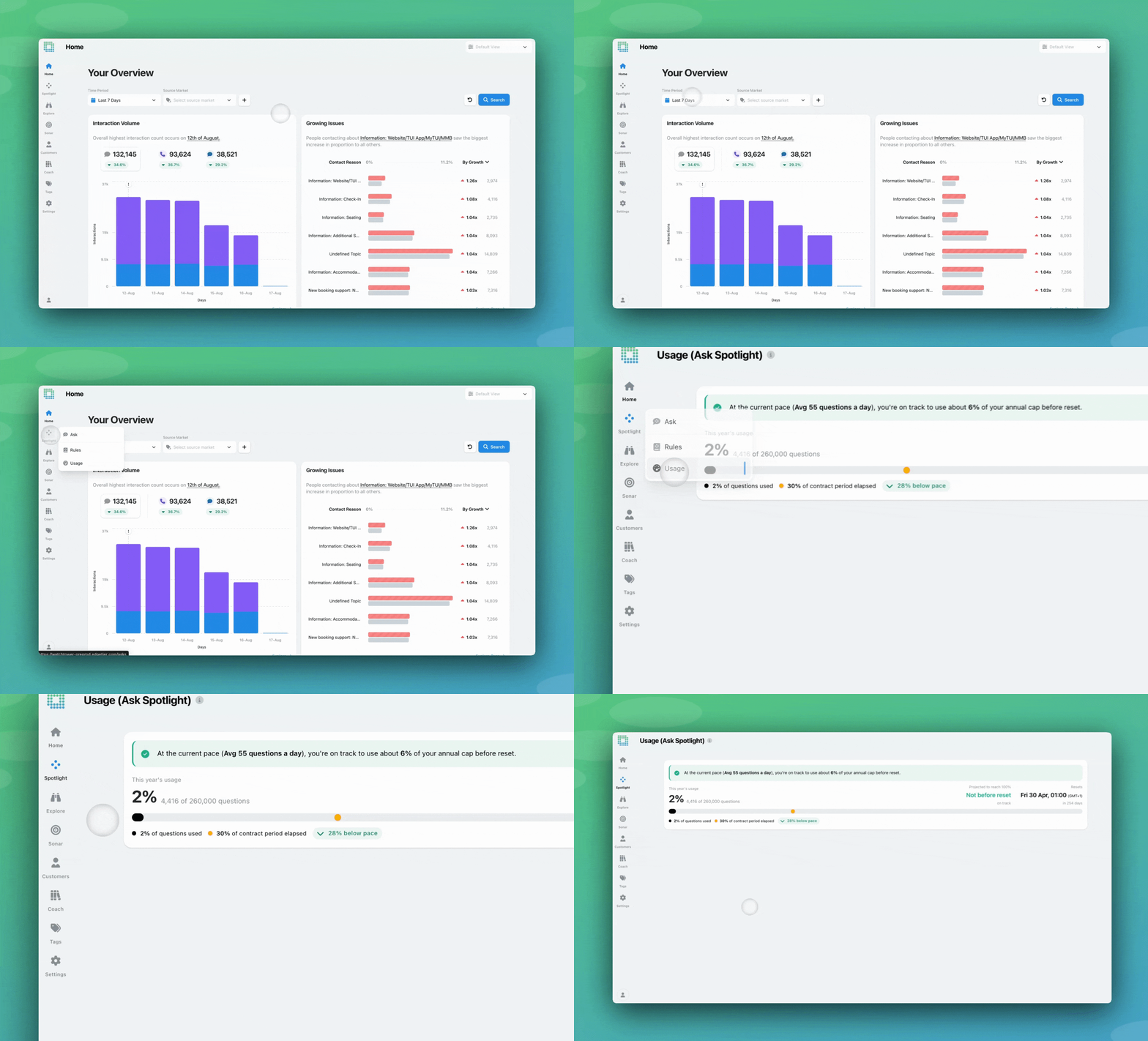

A new Usage page in Ask Spotlight gives you a real-time view of your organisation’s question usage. An annual usage bar shows how many questions have been asked, your current pace, a projection of when you’ll reach your limit, and your renewal date.

Enforcing the daily limit to keep yourselves on track with your question allowance is optional. It’s turned off by default.
If enabled, you will also see usage reflected right in the Ask Spotlight chat, as you’re asking questions. A small indicator shows your usage at a glance, turning orange as you approach your recommended daily limit. Hover over it any time to see exactly how many questions are left today and for the year, without needing to open the Usage page.
If your question limit is reached, the chat input greys out with an “Ask Spotlight is paused” message. An information bar explains when service will resume, with a link straight to the Usage page for more detail.
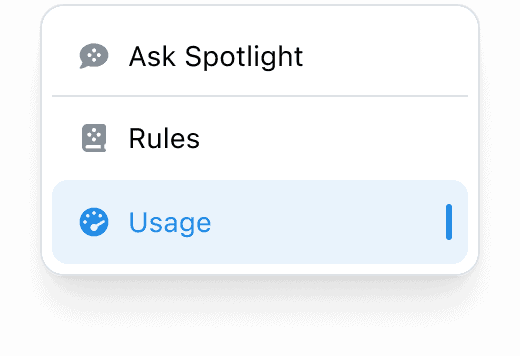
The Usage page is available to users with Ask Spotlight access. The View Ask Spotlight Usage permission is on by default for any user with Ask Spotlight enabled.
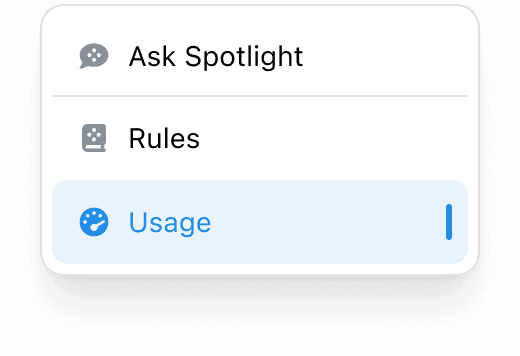
The usage indicator and any pause notifications show up automatically in the Ask Spotlight chat bar itself.
Your organisation’s question allowance is set based on your contract. Contact your Customer Success contact if you’d like to discuss your current limit.
You can now see how every scorecard question was scored across a review period, so you can spot knowledge gaps
Every agent who touches a conversation gets tracked against it now, and you can widen filtering and reporting to match,
You're now able to drop reusable variables into an Ask Spotlight prompt, so you don't have to retype the same


Afroditi Pina
Director of Customer Service
"It has reduced the time for the quality assurance process as it provides clear data and a very robust direction on where to look and what matters the most."


Quentin Bottner
Head of Continuous Improvement
"We’re a big business, so getting the right people to agree and fix something hasn’t always been easy. Now we’ve got one version of the truth—it’s much easier to align and act"


Vladimir Greavu
BBG Director of Customer Service
"I specifically liked the flexibility. I liked the can-do attitude. I always felt supported. There hasn’t been any single point in our journey where EdgeTier has said no."



Let us help your company go from reactive to proactive customer support.
Unlock AI Insights