
Faster Follow-Ups: Add Variables to Your Ask Spotlight Prompts
You're now able to drop reusable variables into an Ask Spotlight prompt, so you don't have to retype the same

You can now create and manage Sonar models within the EdgeTier platform
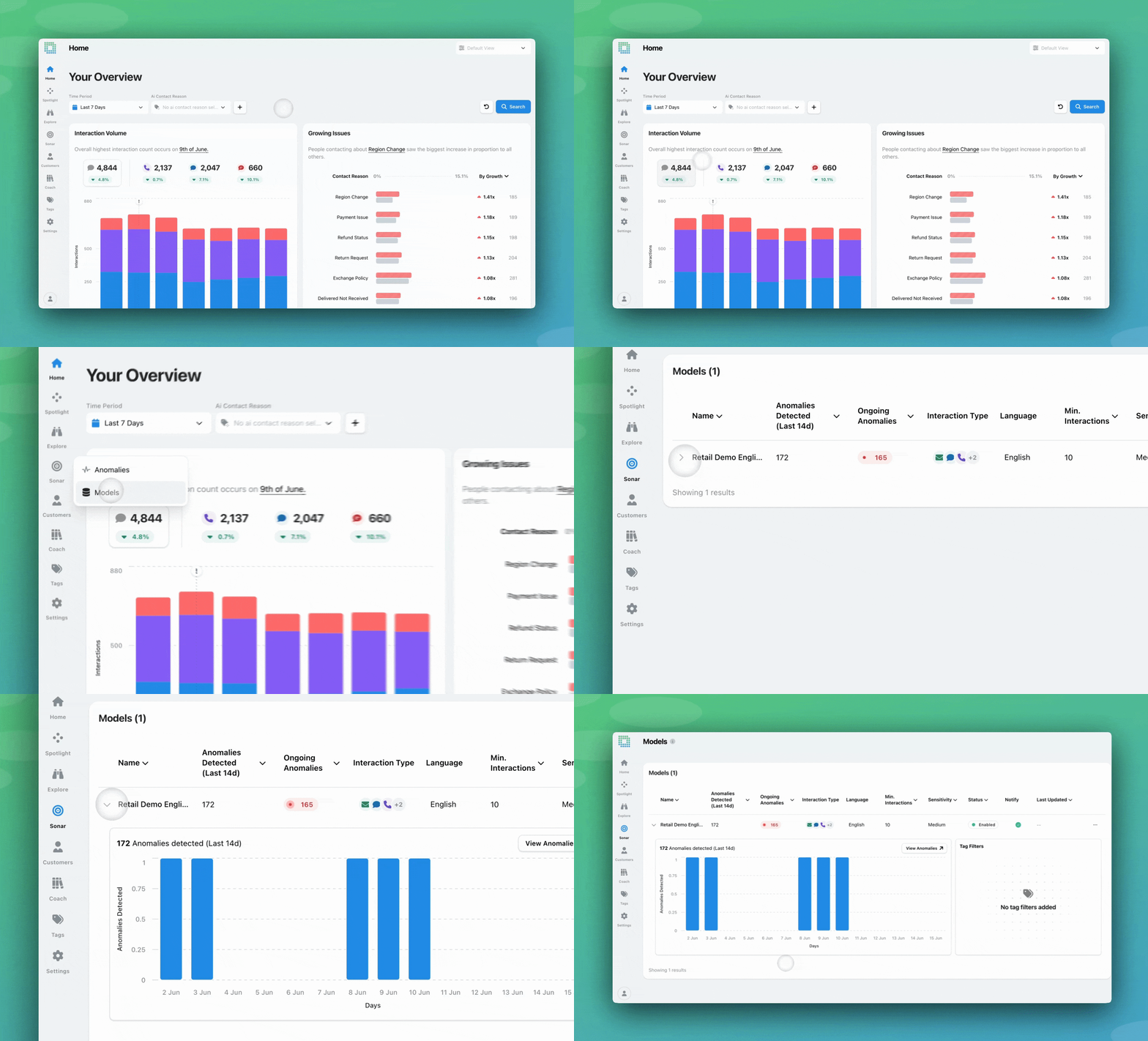
Sonar detects anomalies by learning what ‘normal’ looks like across scoped sets of interactions. For example, if there is more contacts than usual about a specific booking code.
Until now, you could filter anomalies by model on the Anomalies screen , but you couldn’t see or control the settings driving them.
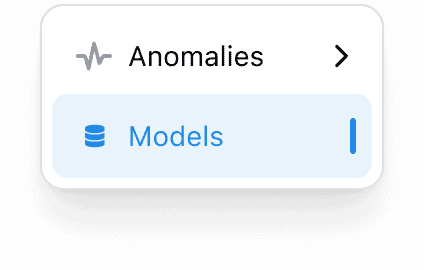
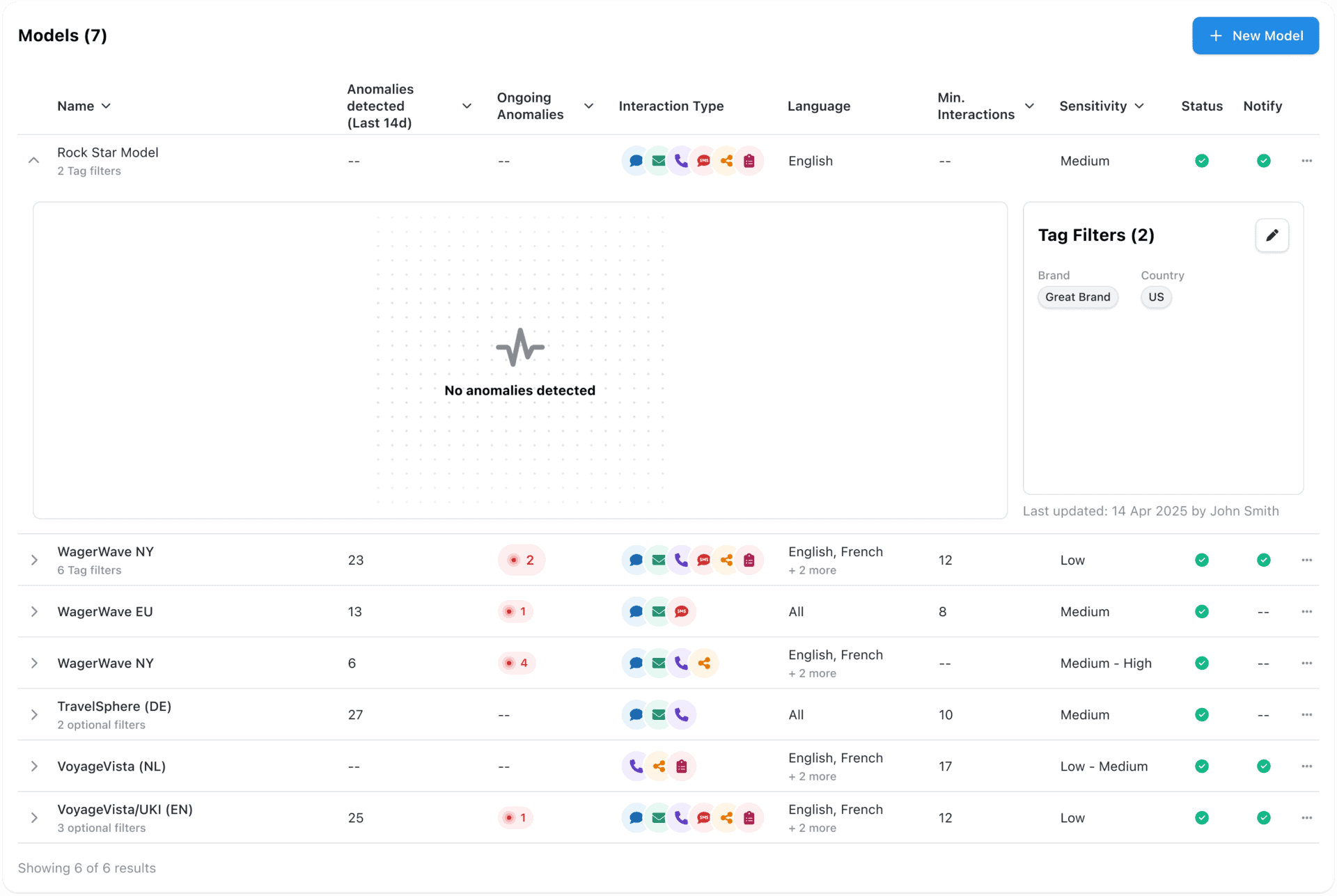
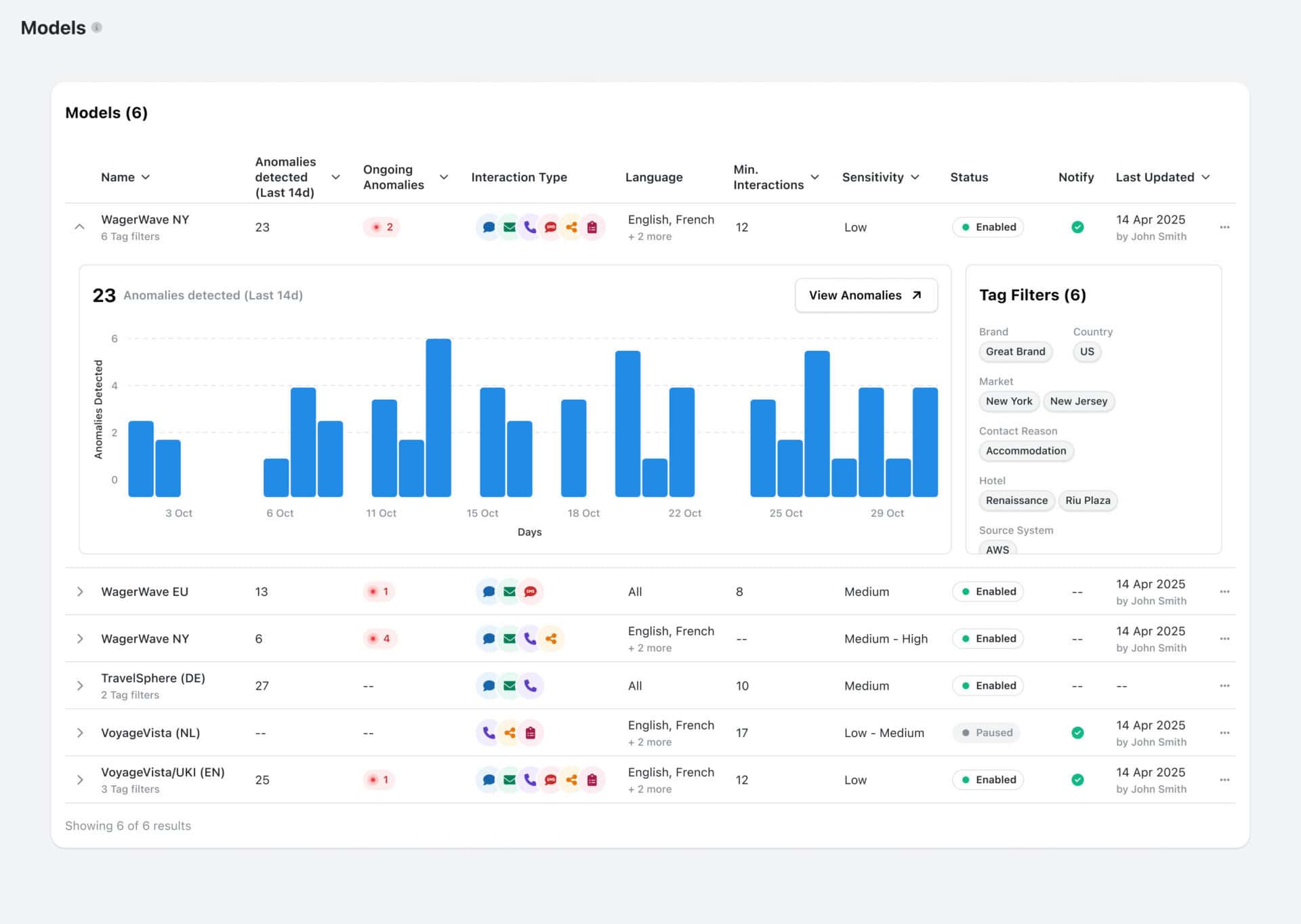
A new Models screen under Sonar > Models changes that. It shows every anomaly model configured for your account, including the tags it monitors, its sensitivity level, alert thresholds, and recent activity metrics , so you can see what’s being watched and how each model is set up. From the same screen, you can also create new models and edit existing ones, all within the EdgeTier platform.
You’ll need the Manage Anomaly Models permission to create or edit models.
1. Go to Sonar > Models and click New model.
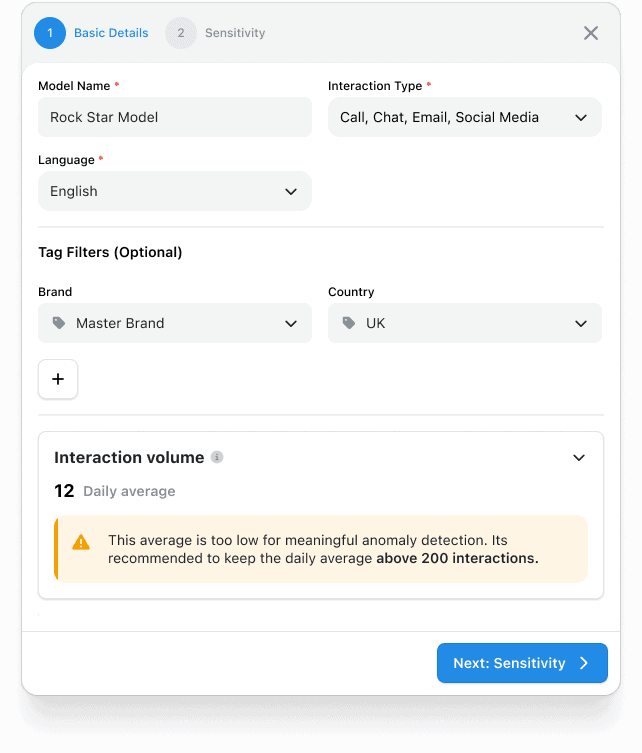
2. Basic details: Give the model a name, then choose the interaction type, languages, and tags you want it to monitor. Sonar then monitors relevant interactions for any ‘out of the ordinary’ content, such as above average contacts about a topic like cancellations. As you set these, Sonar shows the average daily interaction volume for that combination. If it’s too low for reliable detection, a warning banner appears (hover the info icon next to it to see the threshold it’s checking against). Click Next.
3. Sensitivity: Pick a sensitivity level: Low, Low-Medium, Medium, Medium-High, or High. This sets how easily the model flags something as unusual. You can also optionally set a minimum interaction threshold (a minimum of five is always required), so the model won’t raise an anomaly below a certain volume; this can’t be set higher than 10% of the daily average shown (as this would trigger anomalies too frequently) on the same screen, and defaults to ten interactions when not populated. Click Create model.
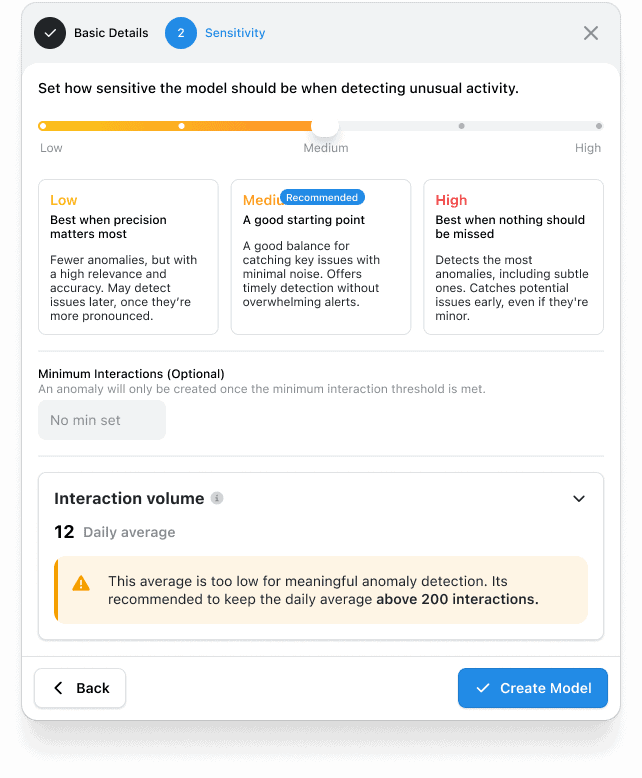
4. Notifications (optional): Once the model is created, you’ll be prompted to set up email alerts for yourself, and for others too if you have the Manage Users permission. This step is optional.
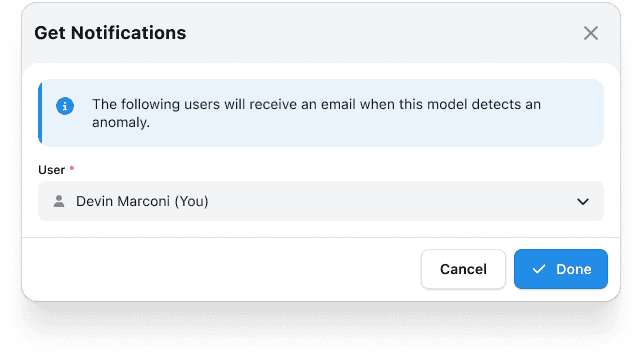
Once created, the model goes live immediately and applies across the whole account, not just to you. To change it later, open its ⋯ menu and select Edit. This reopens the same flow, pre-filled with the model’s current settings.
If you have questions or feedback, reach out to your Customer Success contact.
You're now able to drop reusable variables into an Ask Spotlight prompt, so you don't have to retype the same
Every interaction gets a rating and a short explanation for each of three Experience Drivers, so you can see whether
This update brings together a set of smaller improvements, all based on feedback from people who use EdgeTier every day.


Deborah Guivisdalsky
COO
"We now have highly detailed understanding of agent performance, not just on key agent metrics, but also on how customers react to our agents and the emotions of our customers feel when talking to our team."


Debbie Duggan
Contract Manager for Customer Solutions
"We thought at the time that we were putting the customer at the fore. We thought we were doing things right. But in hindsight, we really weren’t because we had no real-time insights whatsoever into customer issues."


Giovane Nicolau Junior
Head of Operations Performance
"EdgeTier is really shining when it comes to responsible gambling. We can proactively track critical issues and take actions, reducing human error."



Let us help your company go from reactive to proactive customer support.
Unlock AI Insights