
Coaching without the digging: Question-level scoring across reviews
You can now see how every scorecard question was scored across a review period, so you can spot knowledge gaps

Spotlight is EdgeTier's LLM summarisation feature that analyses multiple conversations at once, surfacing recurring issues and trends without the manual effort. This update brings three major improvements: deeper interaction visibility, subtopic exploration, and agent performance insights.
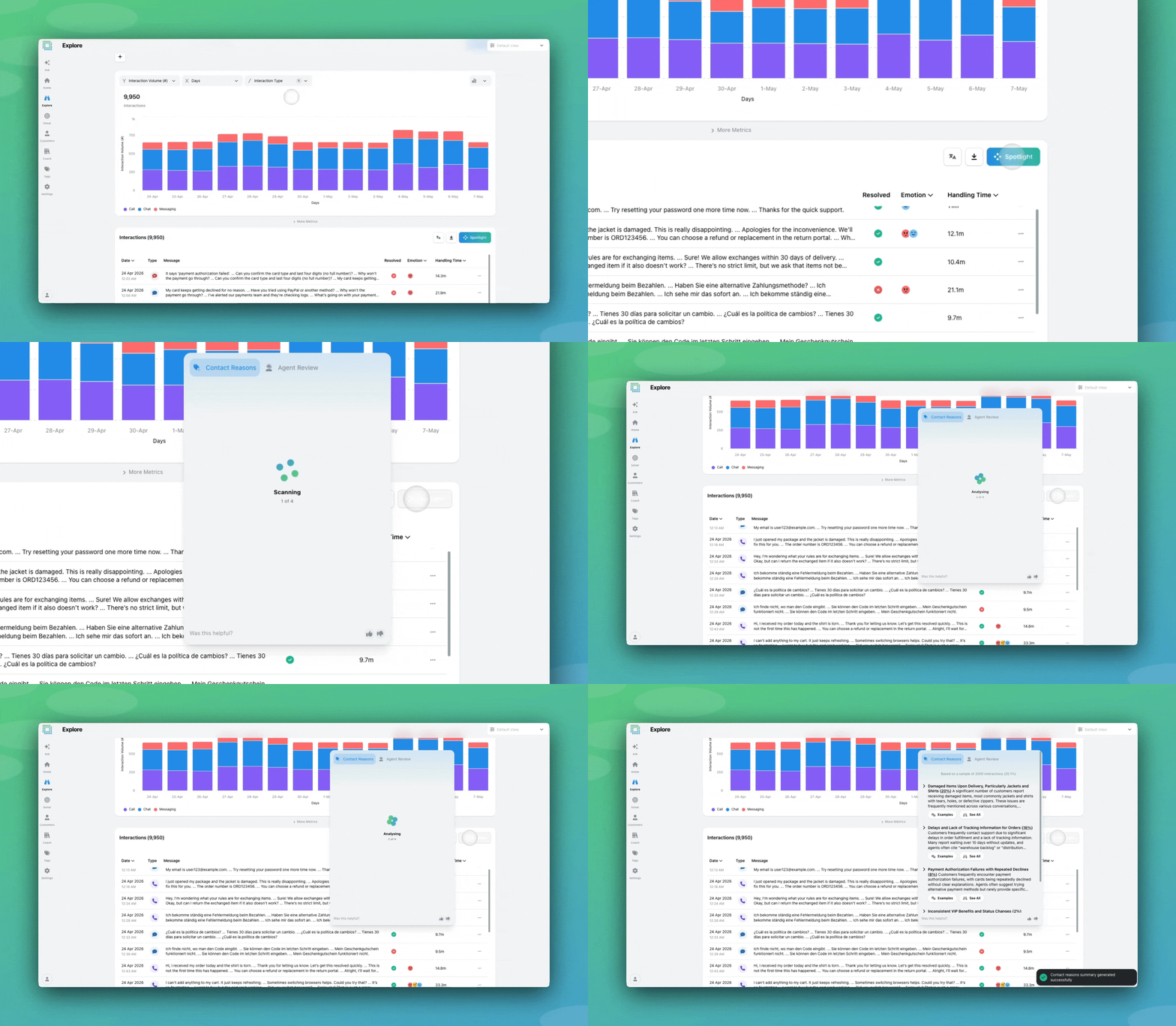

After running Spotlight, each theme now displays an ‘Examples’ button. Clicking it opens a scrollable interaction modal showing interactions related to that topic, drawn from the original sub-sample.
Please note: this view will show fewer examples than the ‘Explore Examples’ button, which takes a bit longer to load, but gives you a fuller picture of the trend.
From there, you can scroll through each interaction to quickly see what’s driving the theme, or use features like the emotion navigation toolbar to spot customer frustration or agent empathy.

You can now take Spotlight one step further. Once you’ve run Spotlight, you’ll see two buttons below each theme:
The new Spotlight view functions as a focused version of Explore. New/further filtering is disabled — the interactions shown are related to the selected topic from your Spotlight. From here you can:
This release gives you more transparency around EdgeTier’s AI Spotlight summaries and lets you get even deeper into your data by showing you the interactions used to pull out the themes.
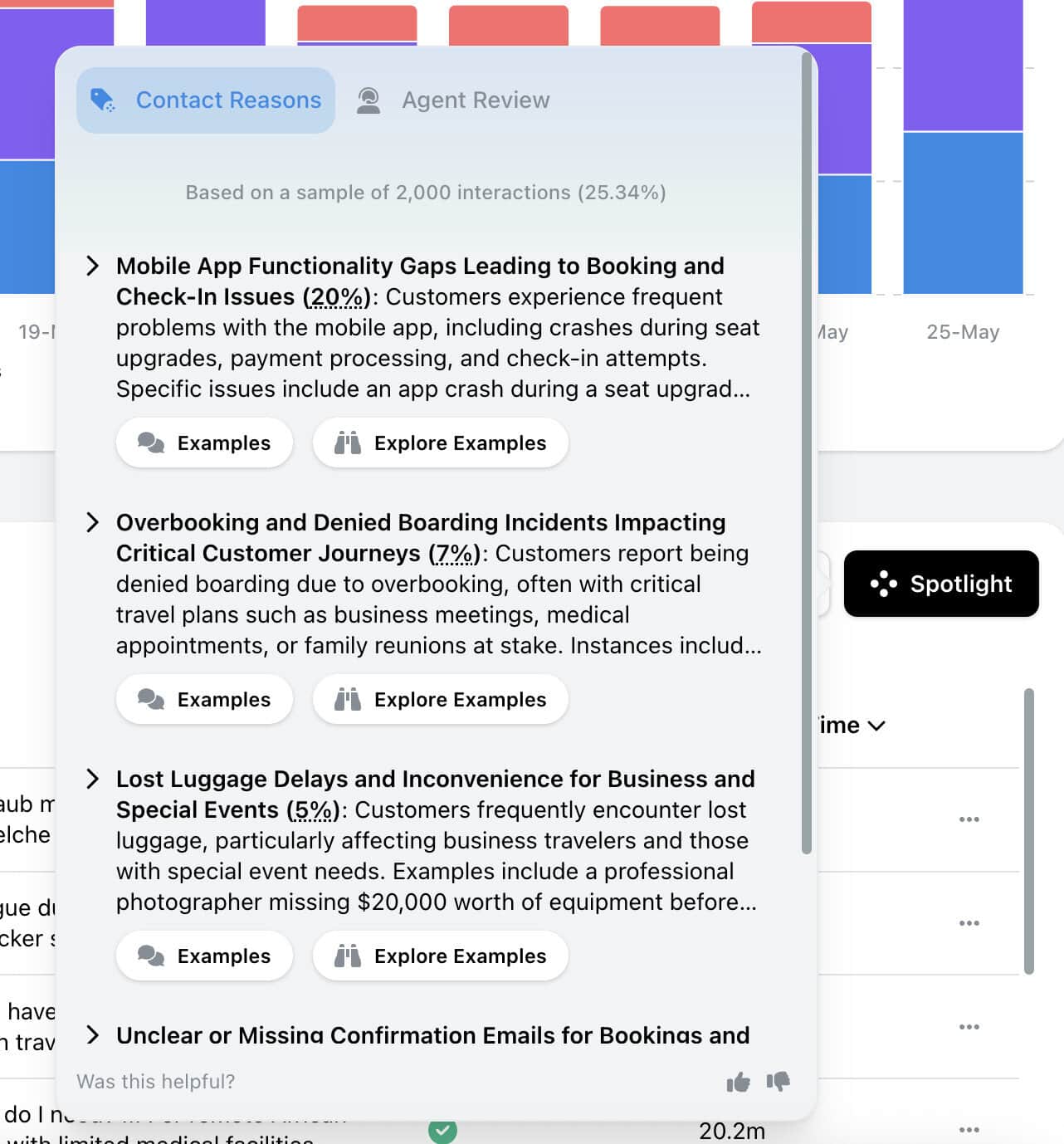

Spotlight’s AI summary now includes an Agent Review view, available in both Explore and Agent Activity. This lets you analyse agent performance patterns across a group of interactions — not just why customers are calling, but how well the team is responding.
When you open Spotlight on a set of interactions, you’ll now see two tabs:
The Spotlight button and tab structure is available on both the Explore interactions table and the Agent Activity screen.
In Explore:
In Agent Activity:
We hope these releases help you dive deeper into Spotlight and EdgeTier’s AI summaries. We’ll be releasing even more Spotlight improvements in the coming weeks.
If you have questions or feedback, reach out to your Customer Success contact.c
You can now see how every scorecard question was scored across a review period, so you can spot knowledge gaps
Every agent who touches a conversation gets tracked against it now, and you can widen filtering and reporting to match,
You're now able to drop reusable variables into an Ask Spotlight prompt, so you don't have to retype the same


Afroditi Pina
Director of Customer Service
"It has reduced the time for the quality assurance process as it provides clear data and a very robust direction on where to look and what matters the most."


Quentin Bottner
Head of Continuous Improvement
"We’re a big business, so getting the right people to agree and fix something hasn’t always been easy. Now we’ve got one version of the truth—it’s much easier to align and act"


Vladimir Greavu
BBG Director of Customer Service
"I specifically liked the flexibility. I liked the can-do attitude. I always felt supported. There hasn’t been any single point in our journey where EdgeTier has said no."



Let us help your company go from reactive to proactive customer support.
Unlock AI Insights