
Coaching without the digging: Question-level scoring across reviews
You can now see how every scorecard question was scored across a review period, so you can spot knowledge gaps

QA managers, team leaders and agents themselves can now see exactly where an agent performs well and where they fall short — broken down by scorecard question — directly within the Agent Activity and Agent Log-In screen, without custom reports or manual filtering.
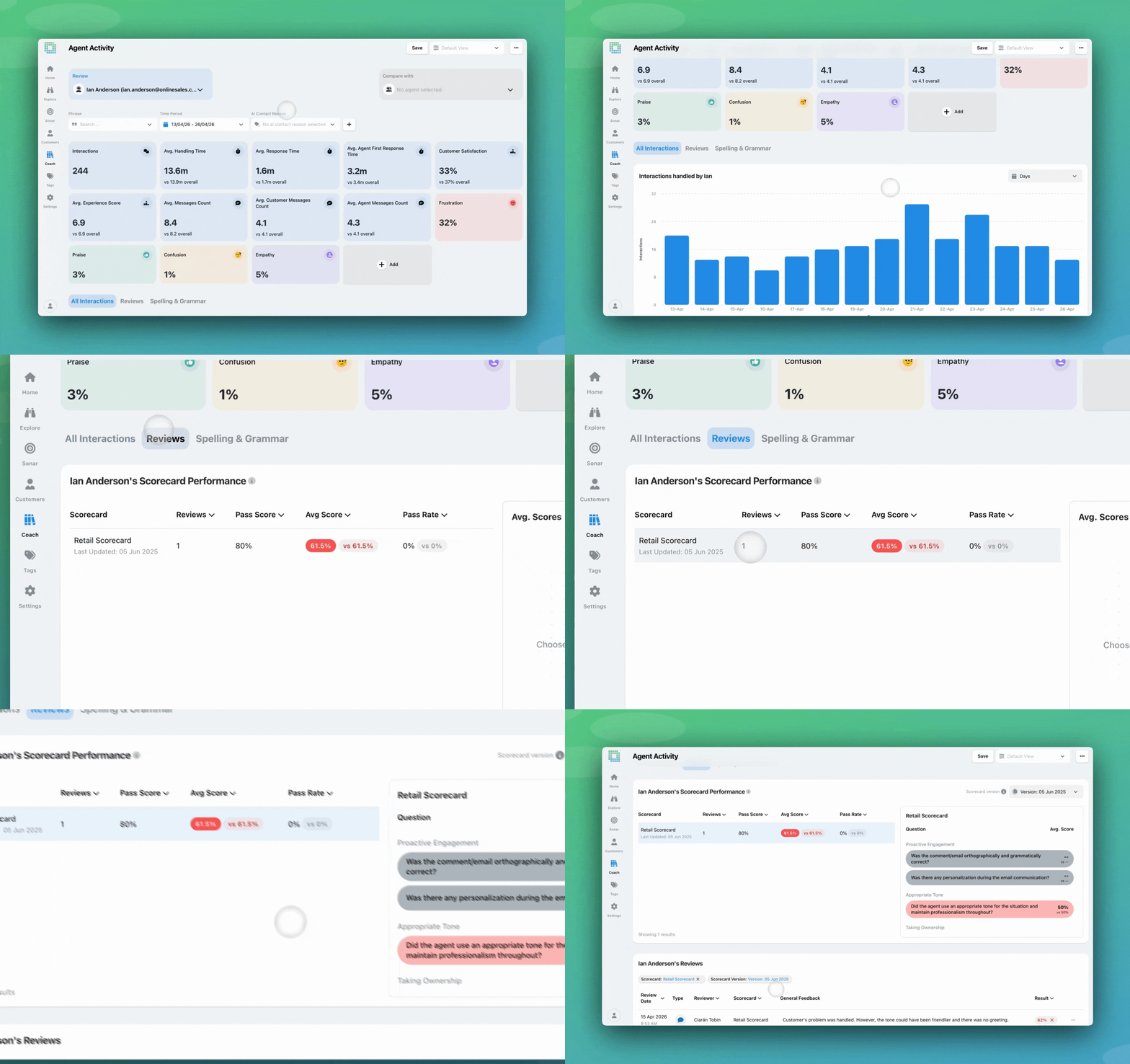
This release is an extension of our previous question-level breakdown release for the Reviews screen, enhancing reporting across the Coach product.
Scorecard Performance summary
When viewing any agent, a new scorecard performance table shows each scorecard the agent has been reviewed on. For each scorecard you can see the number of reviews completed, the pass score, the average score, and pass rate trend over time — at a glance, in one place.
Question-level heatmap
Selecting a scorecard from the summary opens a heatmap showing pass rates per question. Colour coding makes it immediately clear which questions the agent consistently passes and which they struggle with, so coaching conversations can be specific and evidence-based rather than general.
Reviews table with question breakdown
The Agent Activity screen now includes the full reviews table for the selected agent. A Questions tab surfaces question-level detail across reviews, letting you move from aggregate patterns down to a specific interaction in a few clicks.
Agent self-view – Reviews Tab

Agents who log in to view their own activity now see their own scorecard performance and question-level results alongside their interactions — giving them a clear picture of where to focus their development. This is all stored in a new Reviews section, allowing agents to separate interaction metrics and review data.
Agents have a new dedicated ‘Reviews’ sidebar section
A QA lead reviewing an agent’s performance sees immediately that the agent fails the GDPR check question more often than they fail others, guiding them towards a coaching opportunity. Without this view, spotting that pattern would have required manually cross-referencing individual review records.
After a targeted empathy coaching session, a manager can check back on the heatmap the following month and see whether scores on the Empathy question have moved — tying coaching effort directly to a measurable outcome.
An agent logging in to review their own activity can now see which scorecard questions they struggle with most, rather than only seeing their overall pass rate. They can use this to prepare for their next review conversation.
Access to the scorecard performance widget and heatmap follows existing review permissions. Users with the ability to view or manage all reviews can see data for any agent. Users who can only view their own activity see their own results.
The Reviews tab on the Agent Log-In screen is being released in stages and may not be visible to all users immediately.
If an agent has not yet been reviewed on a scorecard, the performance widget will show an empty state rather than incomplete data.
If you have questions or feedback, reach out to your Customer Success contact.
You can now see how every scorecard question was scored across a review period, so you can spot knowledge gaps
Every agent who touches a conversation gets tracked against it now, and you can widen filtering and reporting to match,
You're now able to drop reusable variables into an Ask Spotlight prompt, so you don't have to retype the same


Afroditi Pina
Director of Customer Service
"It has reduced the time for the quality assurance process as it provides clear data and a very robust direction on where to look and what matters the most."


Quentin Bottner
Head of Continuous Improvement
"We’re a big business, so getting the right people to agree and fix something hasn’t always been easy. Now we’ve got one version of the truth—it’s much easier to align and act"


Vladimir Greavu
BBG Director of Customer Service
"I specifically liked the flexibility. I liked the can-do attitude. I always felt supported. There hasn’t been any single point in our journey where EdgeTier has said no."



Let us help your company go from reactive to proactive customer support.
Unlock AI Insights