
Improved Agent Visibility & Filtering on Interactions
Every agent who touches a conversation gets tracked against it now, and you can widen filtering and reporting to match,

You can now see how every scorecard question was scored across a review period, so you can spot knowledge gaps without opening reviews one by one.
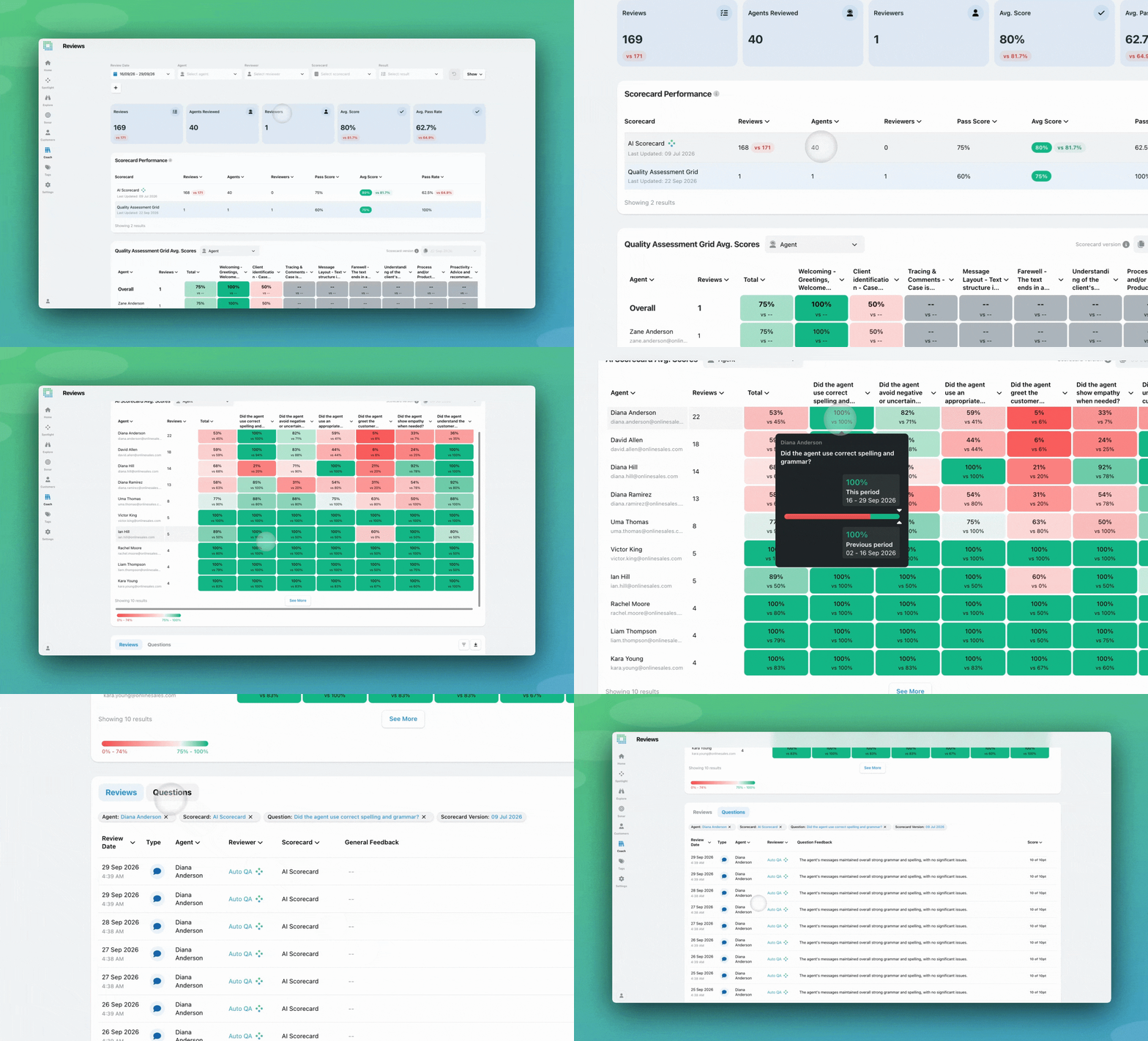
The Reviews table has a new Questions tab on the Reviews, Agent Performance, and Agent Log-In screens. The existing tab shows one row per review. The Questions tab shows one row per question answered in those reviews, with these columns:
The Questions tab follows the filters you already have applied on the screen, including your scorecard and heatmap selection. If you’ve filtered the heatmap to a specific scorecard version, the Questions tab uses that version too.
Clicking a question in the heatmap (a column header, a cell, or a question in the heatlist) switches the table straight to the Questions tab for that question. Clicking an agent, reviewer or group row switches it back to the Reviews tab. The question or agent you’ve selected shows as a pill above the table, and you can remove it to widen the list.
On Agent Performance, the tab shows questions for whichever agent (or agents) you’ve selected. On Agent Log-In, agents see the questions from their own reviews.

If you have questions or feedback, reach out to your Customer Success contact.
Every agent who touches a conversation gets tracked against it now, and you can widen filtering and reporting to match,
You're now able to drop reusable variables into an Ask Spotlight prompt, so you don't have to retype the same
Every interaction gets a rating and a short explanation for each of three Experience Drivers, so you can see whether


Quentin Bottner
Head of Continuous Improvement
"We’re a big business, so getting the right people to agree and fix something hasn’t always been easy. Now we’ve got one version of the truth—it’s much easier to align and act"


James Waghorn
Director of Customer Contact
"EdgeTier is no ordinary software product... It has completely changed how we work at CarTrawler."


Robert Davies
Consultant
"You’ve got an issue, but you don’t know how many people are affected. You don’t know the scale. You don’t even know if it’s real."



Let us help your company go from reactive to proactive customer support.
Unlock AI Insights