
Coaching without the digging: Question-level scoring across reviews
You can now see how every scorecard question was scored across a review period, so you can spot knowledge gaps

We've just shipped a scorecard heat-map to the Reviews screen in Coach. This release will give you a team-wide view of how agents are performing on individual scorecard questions, making it easy to spot patterns, identify coaching priorities, and track improvement over time.
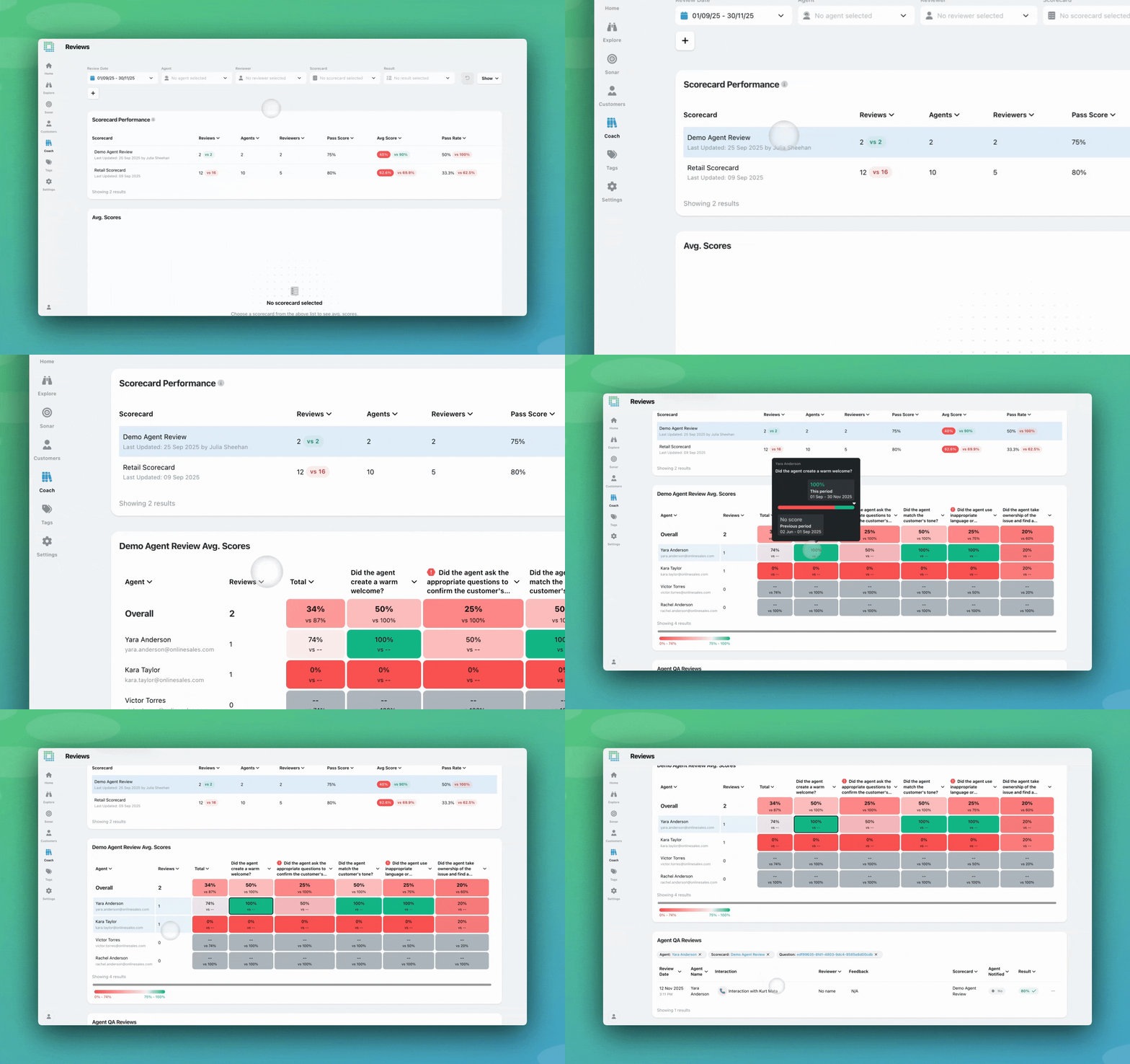
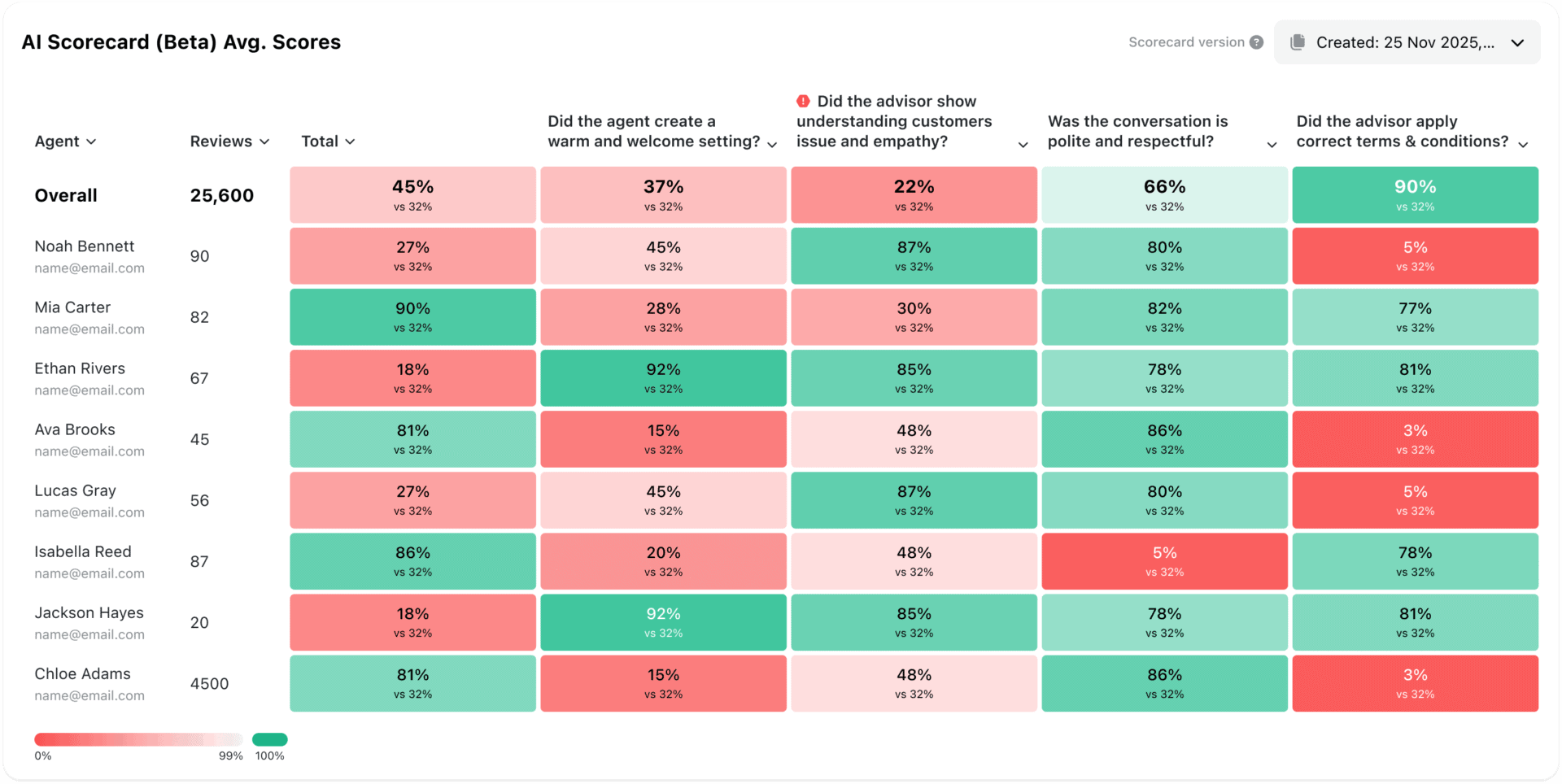
The heat-map sits on the Reviews screen and shows question-level performance across your agents in a single table. Each row is an agent, each column is a scorecard question, and each cell is colour-coded from green to red based on each agent’s pass rate for that question.
Instead of opening individual reviews to piece together a picture, you can now see at a glance:
NB: Previous period compares to the identical time span ending when your selected period begins. For example, if I select 7 days (01/03 – 07/03), the previous period will refer to the (21/02 – 28/02).
The table can be sorted by any question column, so you can immediately surface the questions with the lowest pass rates across the team and prioritise where to focus.
Questions marked as auto-fail in your scorecard are flagged with an icon in the heat-map header. This makes it easy to keep high-stakes compliance or quality questions front of mind when reviewing results.
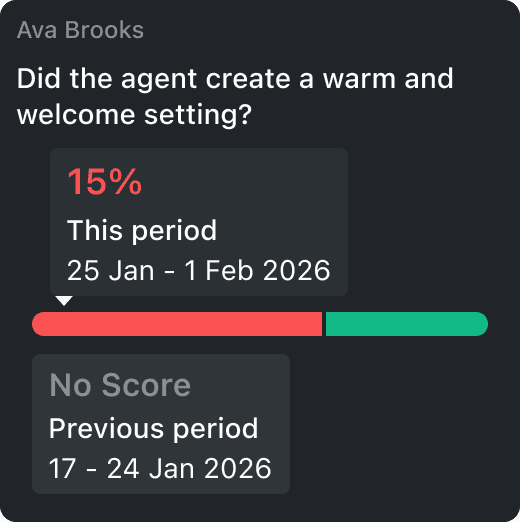
Hovering over any cell shows a breakdown of the current and previous period scores, so you can assess trends without leaving the table.
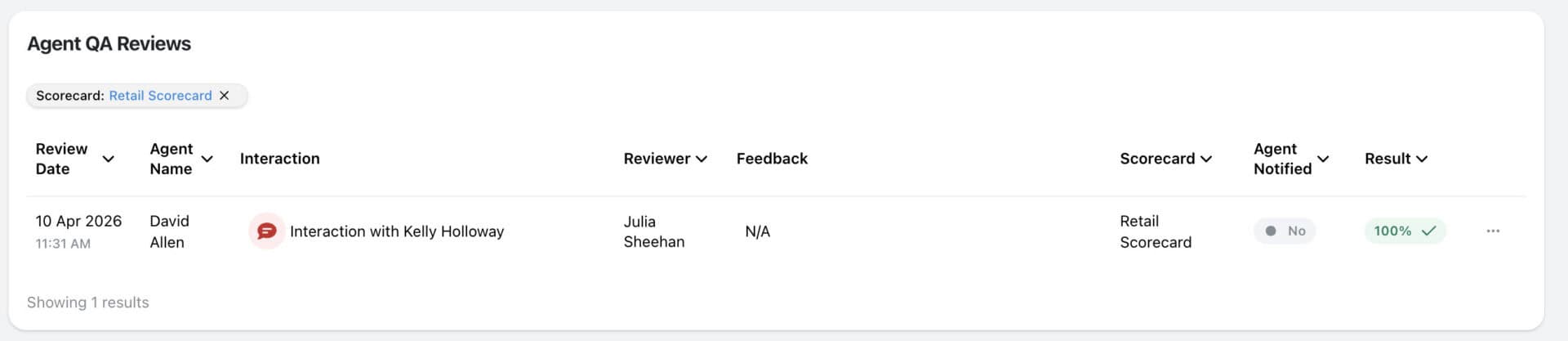
The heat-map doesn’t just show you the pattern — it lets you act on it directly. Clicking any column header or individual cell selects that question or agent, and the reviews table below updates to show only the matching reviews. You can go from “why is this question failing?” to reading the actual reviews in seconds, without changing screens or rebuilding your filters.
This functionality is versioned. If you make changes to a scorecard, you will be able to select your new or old scorecard versions from a dropdown. If a version has no reviews associated with it, it won’t be available in the dropdown.
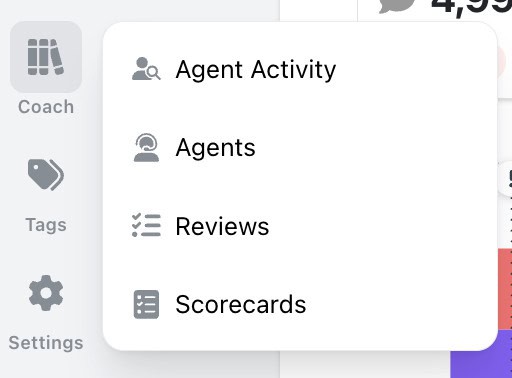
1. Navigate to Coach > Reviews
2. Select a scorecard from the scorecard performance widget

3. The heat map will then display scoring related to that scorecard
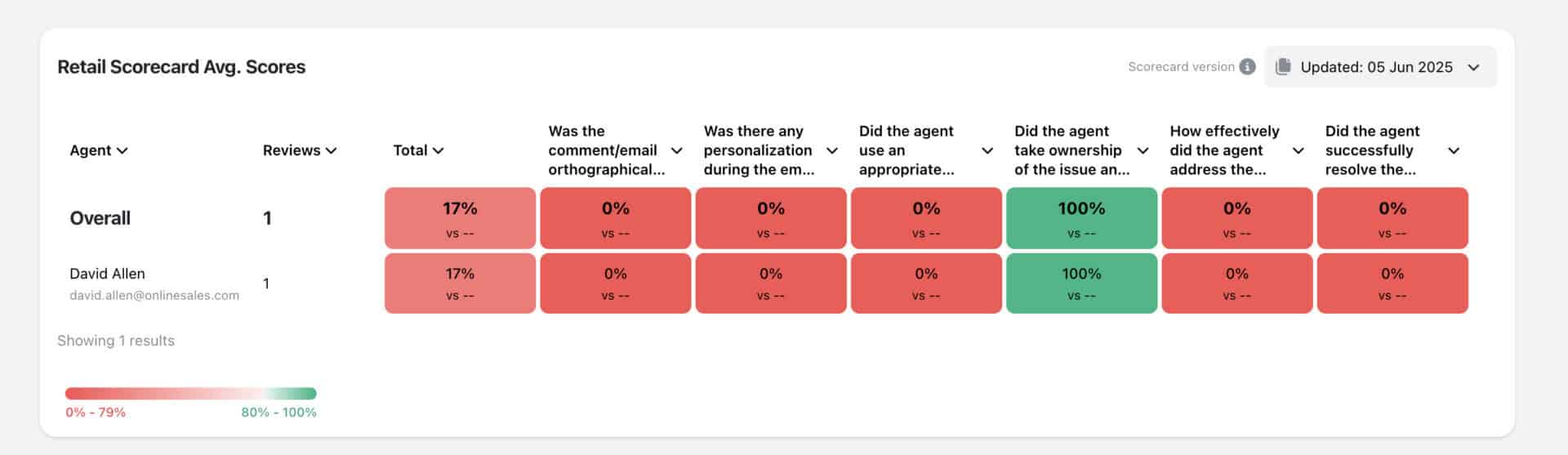
4. You can select any cell in the heat map to filter by that agent or question in the below Reviews table
A QA manager filtering for their team’s scorecard results might notice:
The heat-map surfaces these kinds of patterns immediately, without needing to cross-reference individual reviews or build a separate report
Manage Own Reviews access will only see data for reviews they’ve created. Users with View All Reviews or Manage All Reviews see the full organisation view.This release is for Coach customers. If you have any queries, please reach out to customer success.
You can now see how every scorecard question was scored across a review period, so you can spot knowledge gaps
Every agent who touches a conversation gets tracked against it now, and you can widen filtering and reporting to match,
You're now able to drop reusable variables into an Ask Spotlight prompt, so you don't have to retype the same


Quentin Bottner
Head of Continuous Improvement
"We’re a big business, so getting the right people to agree and fix something hasn’t always been easy. Now we’ve got one version of the truth—it’s much easier to align and act"


James Waghorn
Director of Customer Contact
"EdgeTier is no ordinary software product... It has completely changed how we work at CarTrawler."


Debbie Duggan
Contract Manager for Customer Solutions
"We thought at the time that we were putting the customer at the fore. We thought we were doing things right. But in hindsight, we really weren’t because we had no real-time insights whatsoever into customer issues."



Let us help your company go from reactive to proactive customer support.
Unlock AI Insights