
Q1 Roundup: What’s new in 2026
We've had a busy start to 2026! We wrote a full roundup, click the button below to read more.

Up until now, any new phrase tags were only added to interactions that occurred after the tag was created or updated. Tag Past Interactions will let you apply new or updated phrase tags to older interactions that are already in the EdgeTier system.
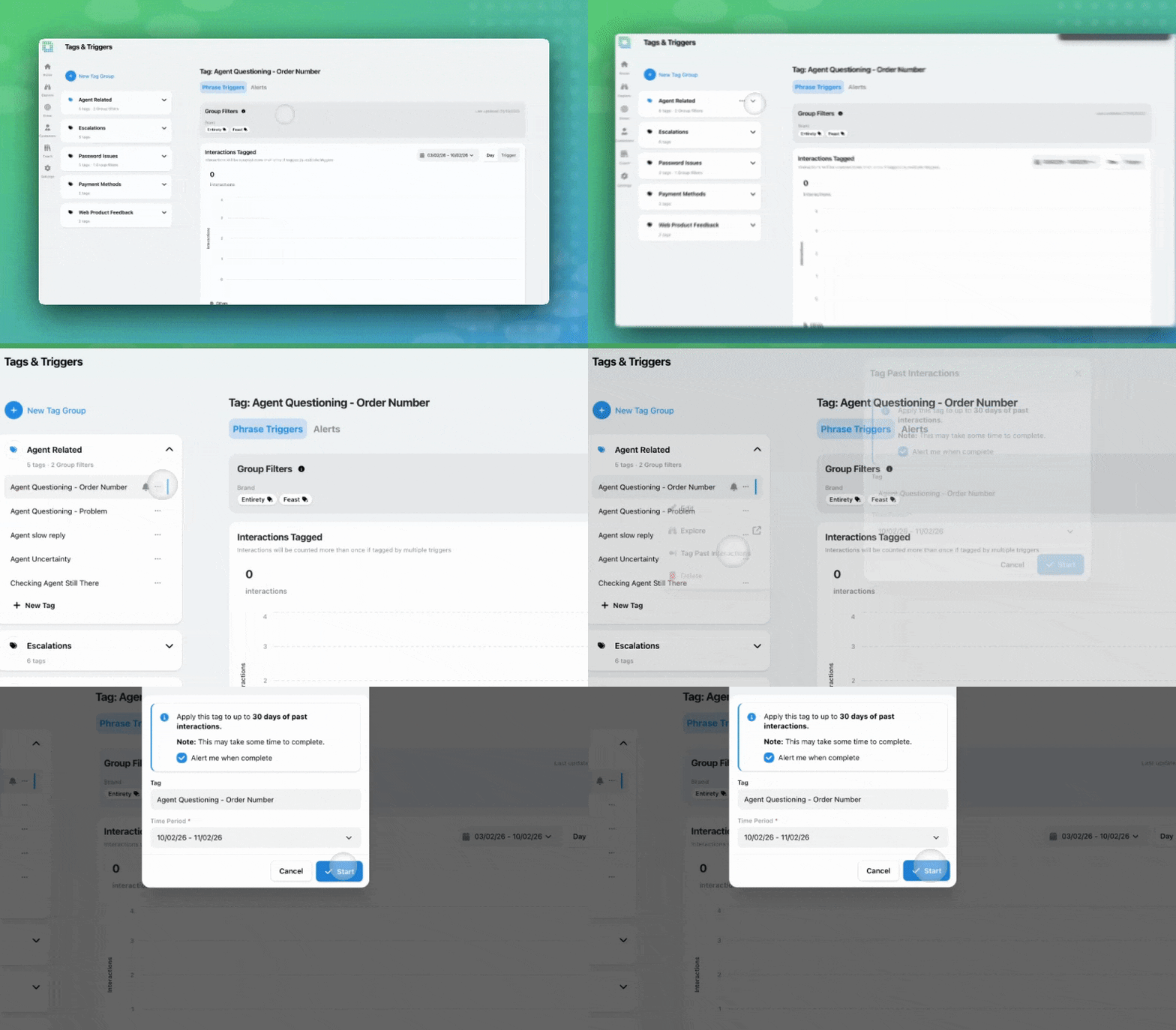
For example:
In short, this will allow you to validate trigger changes against a larger historical sample (up to the last 30 days) instead of waiting for new interactions to arrive.
If you create or update a tag or trigger, and you would like these changes to be applied to historical data, you have two options, depending on the changes you have made. You can backfill a single tag, or multiple tags as part of a batch.
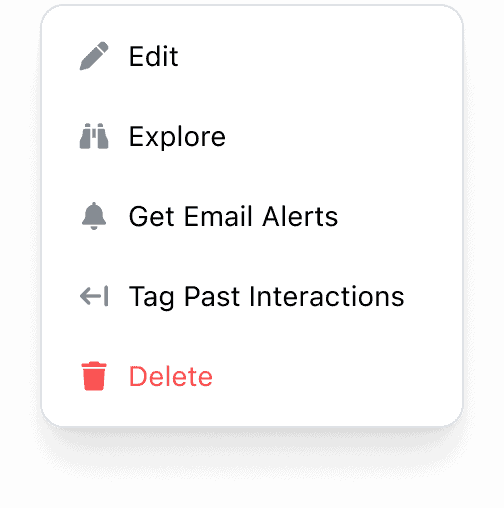
This option may be appropriate if you have updated a single trigger on a tag.
Once tagging starts, the page will show a tagging-in-progress banner. Depending on your interaction volumes, this can take some time to complete.
This option may be appropriate if you had to make changes across different tags and triggers in a group.
You can start the process on multiple tags, but they’ll be processed one batch at a time in the background.
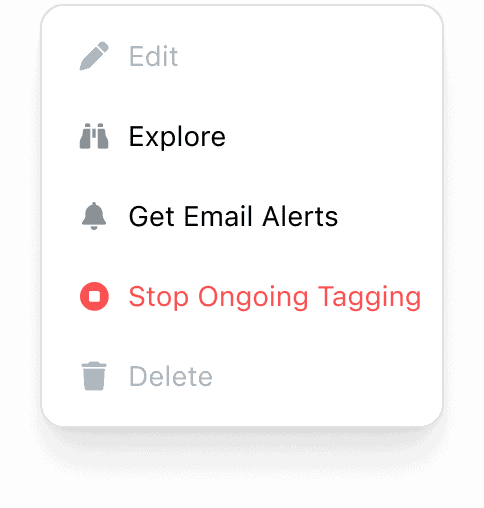
If you started a process to tag past interactions by mistake, or the date range/tag selection needs changing:

If you would like a user to have the ability to apply phrase tags to past interactions:
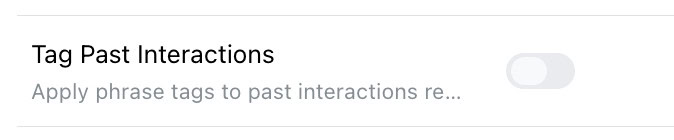
You’ll only see the option to tag past interactions if your role includes the TAG PAST INTERACTIONS permission. Any user with Tags&Triggers access will be able to see the ‘Tagging in Progress’ notification, and subscribe to be notified when complete. This feature will be rolled out to all customers over the next two weeks.
We've had a busy start to 2026! We wrote a full roundup, click the button below to read more.
Exporting a .CSV of your data from EdgeTier allows you to use that data in reporting and presentations, to share
As part of our existing Coach product, the reviews screen has allowed you to view all reviews completed on your


Debbie Duggan
Contract Manager for Customer Solutions
"We thought at the time that we were putting the customer at the fore. We thought we were doing things right. But in hindsight, we really weren’t because we had no real-time insights whatsoever into customer issues."


Nick Brazitis
Global Customer Care Manager
"The anomaly feature is a game changer for us. It’s highly accurate and has helped us identify customer issues, agent errors, and even fraud that would have taken us longer to catch."


Vladimir Greavu
BBG Director of Customer Service
"I specifically liked the flexibility. I liked the can-do attitude. I always felt supported. There hasn’t been any single point in our journey where EdgeTier has said no."



Let us help your company go from reactive to proactive customer support.
Unlock AI Insights